solutionMultipleSelect
Use this answer type for multiple choice questions that have more than one correct answer. Answers can be:
- Statements
- Expressions
- Images
- HTML, TeX, var, or plain text
Mobile-compatible answer type: You can use this answer type to create mobile-ready Mastering questions which can be completed on a smartphone, tablet, or on a computer. Guidelines for mobile-ready items
Student view
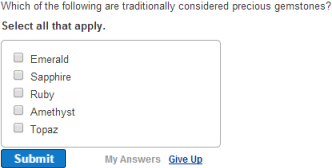
Answer box for this example
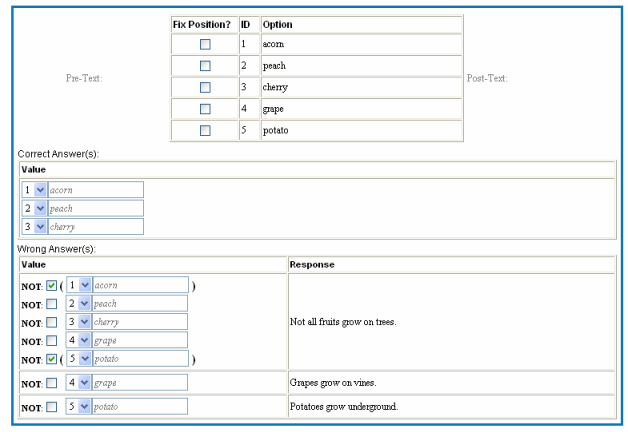
To create a solutionMultipleSelect item:
- In the Item Editor, under Answer Instructions, click the add box and select solutionMultipleSelect.
For new items, the solutionMultipleChoiceRadio answer box displays in Part A by default. To change this or any other answer type, right-click in the box and select Remove > answer type to see the add box.
- Enter information in the answer box, as described below.
[Optional] Pre-Text and Post-Text
Use Pre-Text to enter a complete sentence or the start of a sentence that precedes the options. Use Post-Test to enter a phrase that completes a sentence, following the answer chosen.
Fix Position, ID, and Option
- In general, leave Fix Position unchecked, so that selections appear in random order.
However, if answers are a series of numbers or other elements that make more sense in a specific order, check the Fix Position box. Also, if the correct answer is All of the above, make sure that is the last option in the list and that Fix Position is checked.
- Enter ID numbers in order, and then enter a specific Option that corresponds to each ID.
- To add more options, click a row and select either Insert before > option > option or Insert after > option > option.
To add a row after the last one, you can also place the cursor in the last row and press the Tab key.
Correct answers
Under Correct Value(s), enter the multiple ID numbers for the correct answers.
In the example above, 1, 2, and 3 are the IDs for the correct answer. Students must select all three choices – acorn, peach, and cherry – to correctly answer the question.
[Optional] Wrong answer responses
Note: Though not required, it's recommended that you include wrong answer feedback responses.
To include wrong answer responses:
- Click add expression under Value in the Wrong Answer(s) box.
- Select ID(s) for the wrong answer.
Enter more specific wrong answers first, followed by less specific ones. To indicate that a student submission did not include an answer, click the NOT box beside the answer.
- Click add response, and enter text that displays when students submit this incorrect answer.
- To add rows to the table for additional responses, click a row and select either Insert before > option > expression or Insert after > option > expression.
To add a row after the last one, you can also place the cursor in the last row and press the Tab key.
In the example:
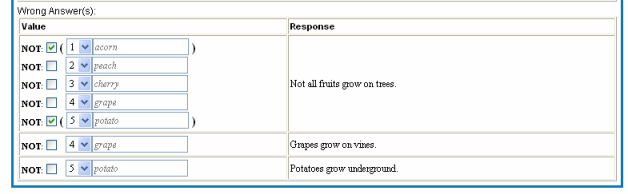
The first wrong answer response (WAR) displays if a student selects peach, cherry, and grape, but not acorn or potato (because the NOT box is checked for them). This is a very specific wrong answer. The next two responses are less specific, displaying if students select either grape or potato, regardless of the other options selected.
See also:
Creating effective wrong answer responses
solutionMultipleChoiceDropdown