Take and review assessments in the player
You answer assessment questions and later review your scored answers in the MyLab player. Although the appearance of the player is similar for both tasks, there are differences in the actions you can perform when taking versus reviewing an assessment.
To use the MyLab player with JAWS, you must change the player settings. See Set up the player for JAWS for more information.
 Take an assessment
For quizzes, tests, and other assessments that you take in the player, it displays the questions one by one. You can enter answers and view information about the assessment. However, you cannot check your answers and you usually do not have access to question help or learning aids.
At the top of the player you can see information about the test:
- This Question: displays the point value of this question.
- This Test: displays the total point value of all questions on the assessment.
- The number of questions that you have completed out of the total number of questions is displayed, for example: 1 of 40 complete.
- If the assessment has a time limit and your instructor makes it visible, you see how much time is left, for example, Time Remaining: 00:26:43.
Display the assessment overview
You can see a list of all questions in the assessment by selecting the player's Overview arrow  .
.
The Overview displays the number of points for each question in parentheses. If you see the Show Work icon  next to a question, it means you have to enter additional information showing how you arrived at your answer.
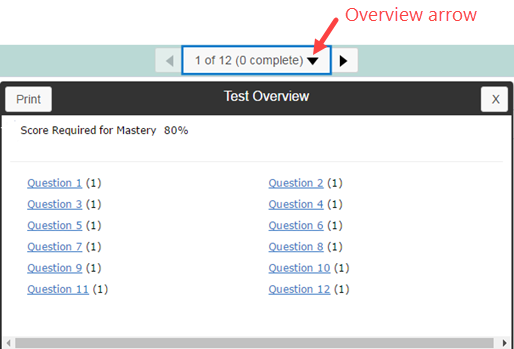
The Test Overview is not available in assessments with the Save for Later option. For these assessments, you have to answer the questions in the order that they appear.
When the Test Overview is available, you can select a question link to work on that question. You don't have to answer the questions in order. Or, select the next or previous arrow in the navigation bar to go to the next or previous question.

Save your answers and finish the test later
Generally you need to complete the test or quiz in one pass; you cannot exit partway through the test/quiz and return later to finish it. The exception to this is the Save for Later button. This means you can complete some questions on an assessment, save your answers and exit the assessment. When you resume work on the assessment, you can answer the questions that you did not answer in the first session. However, you can't review or change the answers you made in the first session.
If the player doesn't display the Save for Later button, you have to complete the test in a single session. Complete as many questions as you can before selecting Submit Test.
Work an assessment with no Save for Later
You can do the questions in any order:
- Use the arrow keys on the navigation bar to jump forward and backward through the questions.
- Use the navigation bar's Overview to see a list of all questions in the assessment. You can select a question in the Overview to go to that question.
Do not select the Back button in your browser or go to other pages in your course until you have completed all the questions you can and selected Submit Test. Navigating to other pages exits the assessment and flags it as incomplete. In some cases, you might not be able to access this assessment or any other part of your course until you get your instructor's permission to finish the assessment.
Work an assessment with Save for Later
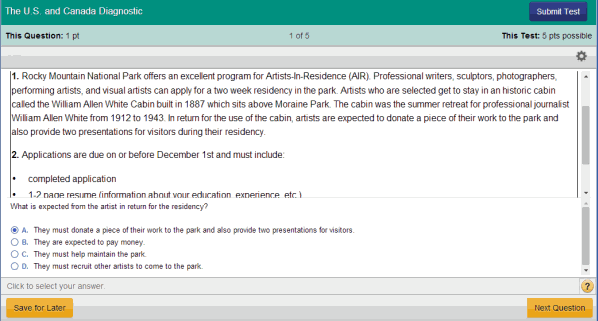
You must answer the questions in the order they appear:
- The Next Question button is not active until you completely answer the current question.
- Once you answer a question and select Next Question, you can't go back and change your answer.
- Do not select Submit Test until you have finished all questions on the test. If you need to take a break, select Save for Later.
Pearson LockDown Browser and JAWS
Your instructor might require all that students use the Pearson LockDown Browser when taking a test. However, the Pearson LockDown Browser is not compatible with JAWS. If an assessment is presented in the lock-down browser or you are asked to install the lock-down browser, you will need to complete the assessment on a laptop or desktop system.
Review your assessment results
When you complete an assessment, a summary is displayed showing how you did on the assessment overall and on each question. The top portion of the summary displays the assessment's name, the date you submitted it, the amount of time you spent on the test, and your score. The summary icons, described below, show your results for each question.
For a Path Builder or Skills Check, the summary marks the topics or modules that you mastered with the Mastered icon  , and those that you need to work on with the Needs Study icon
  .
.
To review a question, select its name to open the assessment on that question in the player.
You can also review your results by opening the test from any page that displays your results or completed activities. Select the assessment's link or Review link. If necessary, select a question link to display the question and your response in the player.
In the player, select the Overview arrow to display the results for all questions. You can also select a question in the Overview to go to that question.
Changing an answer when you're reviewing an assessment does not change your score. To improve your score, you must retake the test
The Overview displays one of the following icons for each question.
| Icon | Explanation |
|---|---|

|
You answered the question, but your instructor has not yet graded it. |

|
You answered the question correctly. |

|
You answered the question incorrectly. |

|
You answered part of the question correctly, and received partial credit.
For Show Work Questions, this icon is displayed for one of the following reasons:
For a drag-and-drop or fill-in-the-blank question where you are allowed partial credit, each target is scored separately. This icon means that the question has multiple targets, and at least one target is correct and at least one is incorrect. |

|
The Essay icon flags an essay question or a multipart question that includes an essay. |

|
The question is marked as incorrect because you did not answer it. |

|
Your instructor added a comment to this question. |
See also: