Answer questions in assignments
The student player is where you do assignments and answer questions. It checks answers and sends the results to your gradebook. You can work on tablets or computers, but smartphones are not supported.
The student player might look different depending on your course.
 Do homework assignments
After you select an assignment, an overview page opens. You see the items to answer, your score so far, and other assignment details. Icons indicate what type of content makes up the assignment.
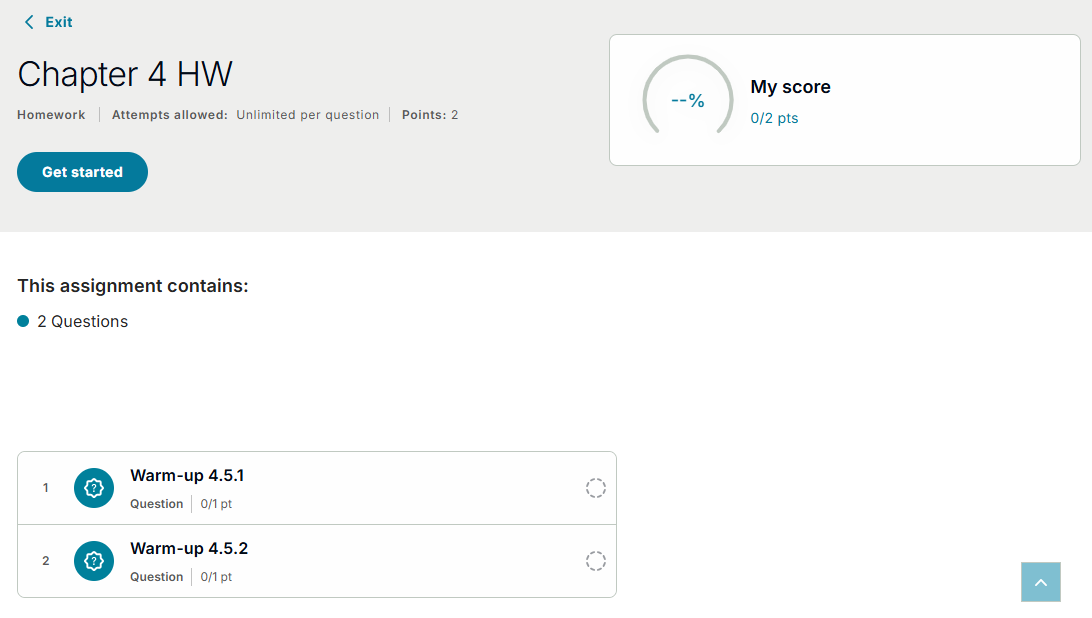
- Select Get started.
Or, select Resume if you previously worked on the homework.
An item to answer opens.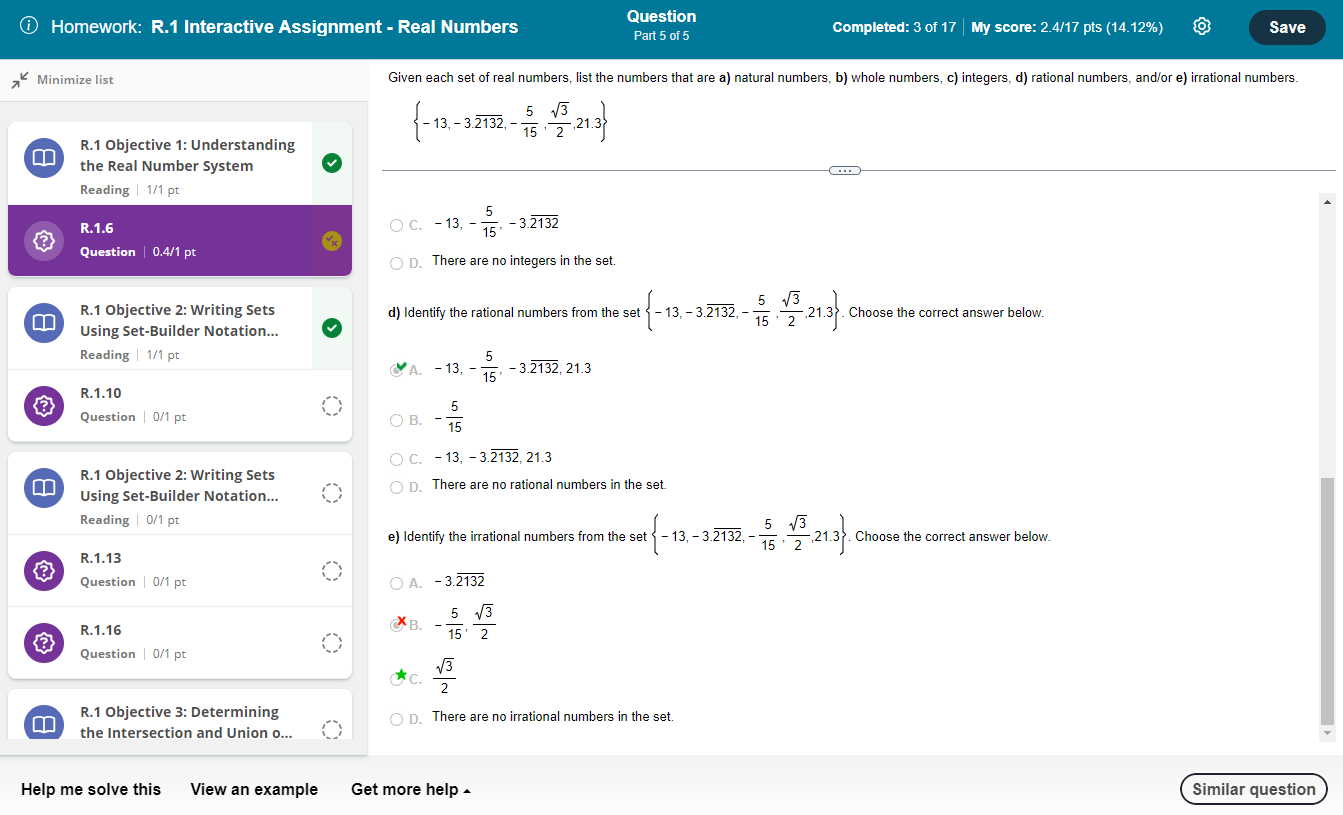
Depending on your course you might see:- Details at the top, such as completed items and your score so far.
- The number of parts to the question and part markers to help you track where you are.
- Available learning aids at the bottom, such as AI Study Tool or eText pages.
- Read the question and enter your answer.
If needed, select to open a palette of math symbols.
Learn more about answering different question types. - If the question has multiple parts, select Next to complete each part.
- Select Check answer to see if you are correct. If not, you see immediate feedback. Select Clear all to try again.
You receive feedback as you make each try. When you exhaust all tries the correct answer shows.
Optionally, select See previous answers to review your feedback. - If you use all your attempts, select Try again to try again.
Or, select Next to go to the next question. - If you answer correctly, select Next to go to the next question.
Or, select an item from the question list on the left side of the screen.
Use to minimize or expand the question list.
 - Select Save or Finish to submit your completed homework or to save and finish later.
Your score is automatically entered in the gradebook.
Take tests or quizzes
After you select a test or quiz, an overview page opens. You see the items to answer, your score so far, and other assignment details.
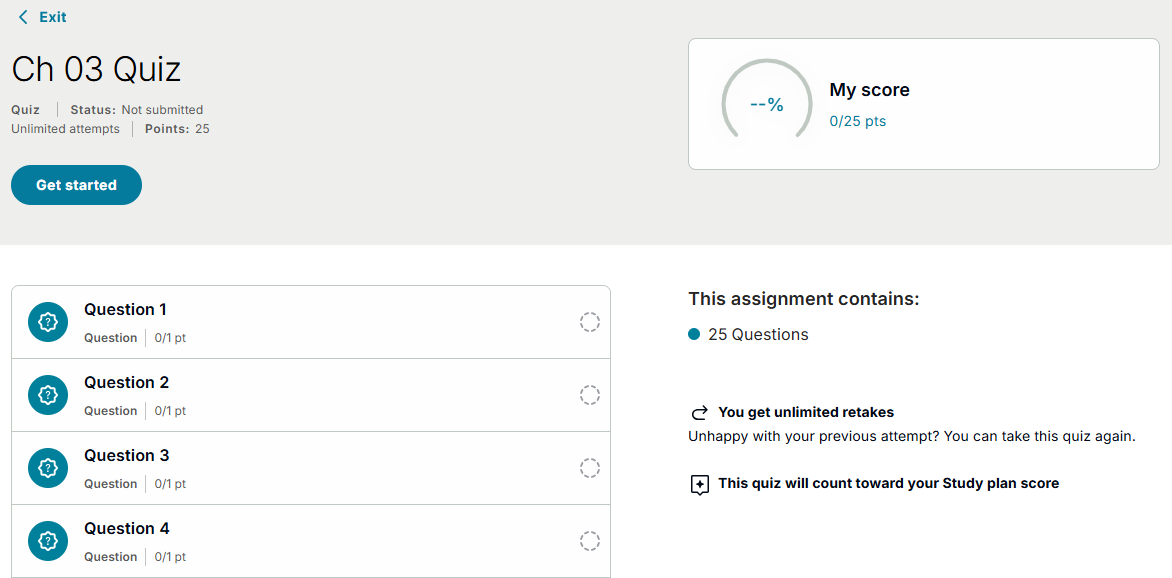
- Select Get started.
Or, select Resume if you previously worked on the test or quiz.
A question opens.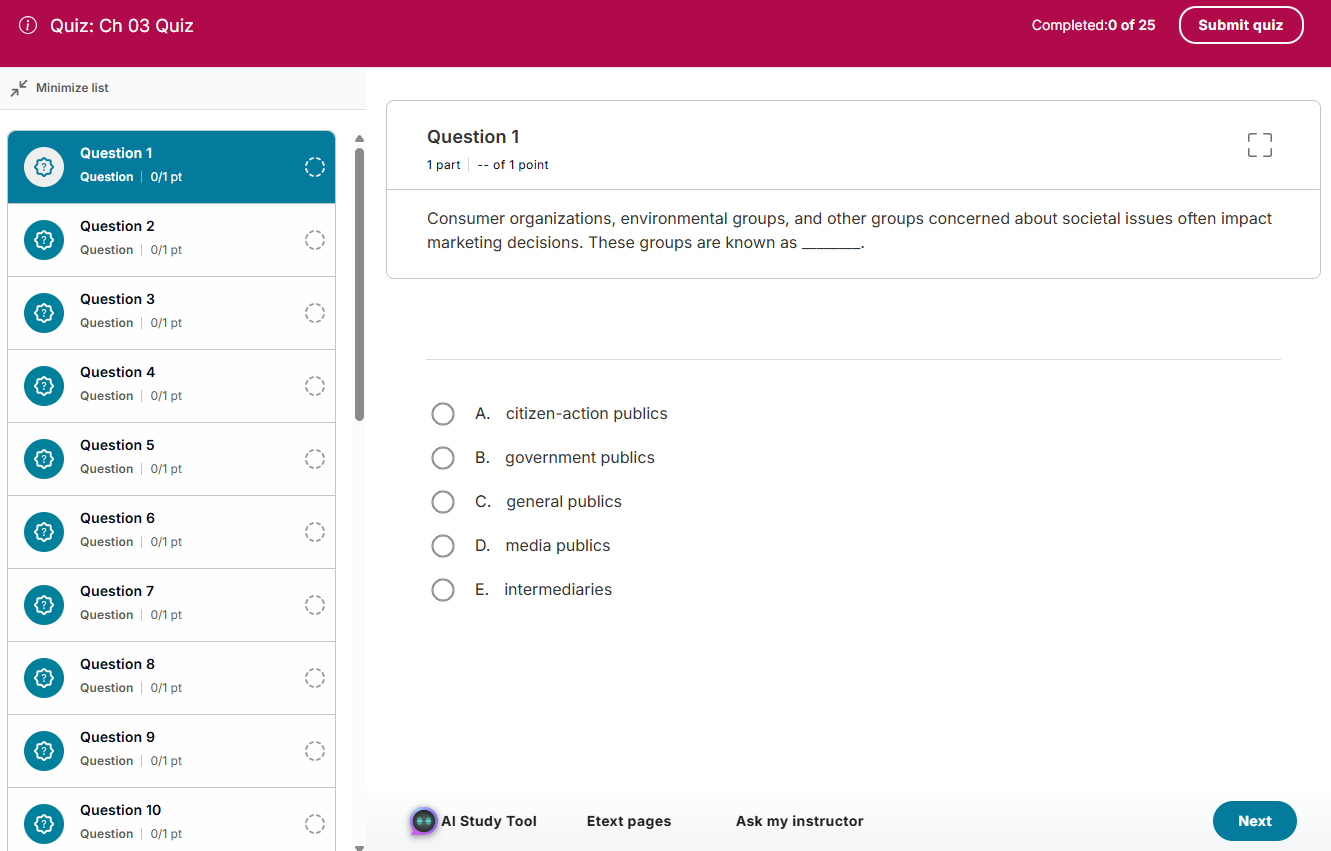
Depending on your course you might see:- Details at the top, such as completed items and your score so far.
- The number of parts to the question and part markers to help you track where you are.
- Available learning aids at the bottom, such as AI Study Tool or eText pages.
- The time remaining, if your instructor set a time limit.
- Read the question and enter your answer.
If needed, select to open a palette of math symbols.
Learn more about answering different question types. - Select Next to go to the next question.
Or, select an item from the question list on the left side of the screen.
Use to minimize or expand the question list. - When you finish, select Submit to save and submit your answers. Your score is automatically entered in the gradebook.
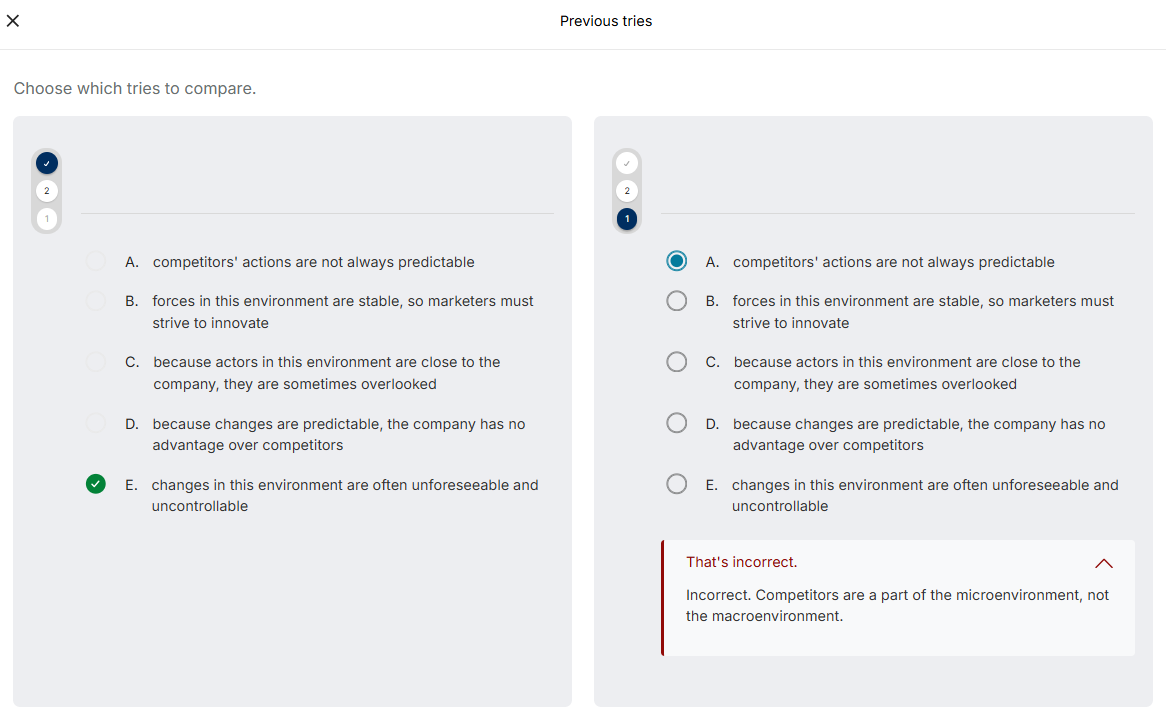
See previous answers
In some courses, while answering questions you get in-line feedback as you make tries. When you exhaust all tries, the correct answer shows with a green check mark.
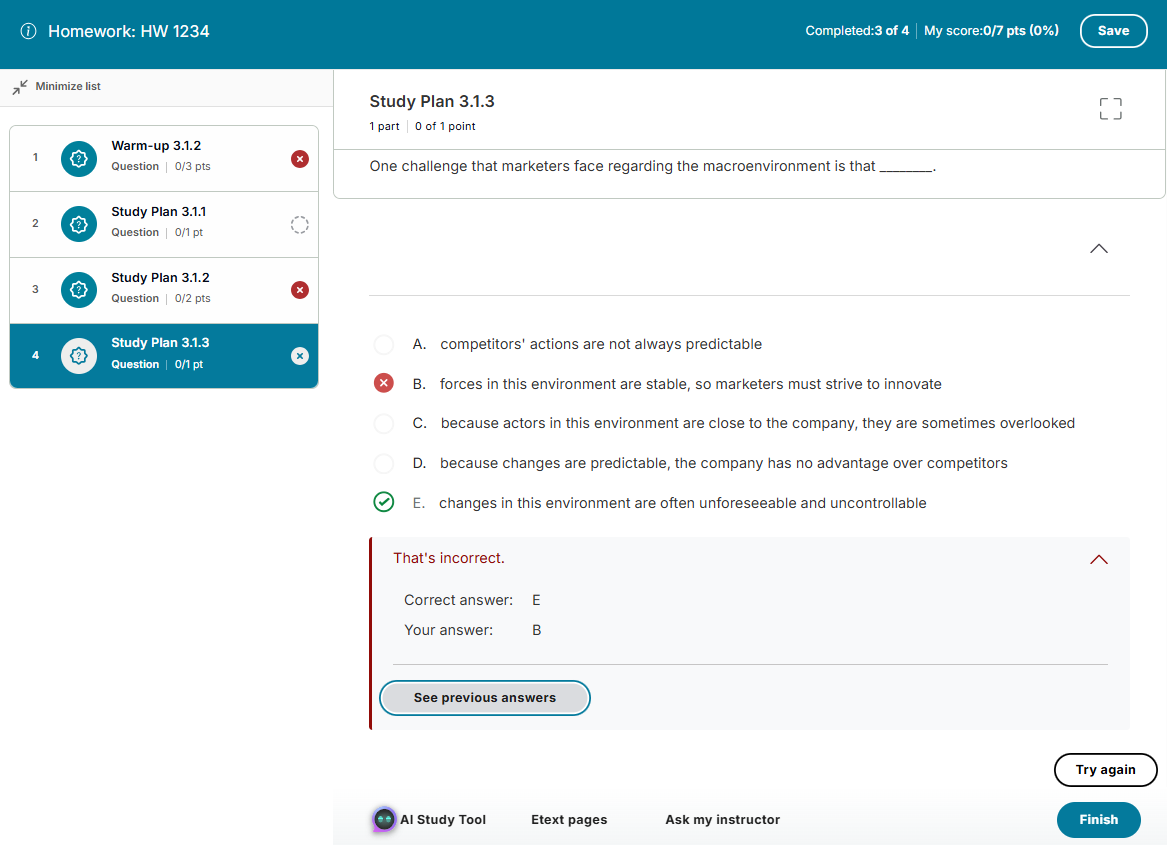
To review feedback:
Select See previous answers.
The Previous Tries page opens and shows:
- The feedback you received across tries
- The correct answer