Use the assignments dashboard
 New feature: If your eTextbook has instructor-led assign and guide tools, you can use the dashboard to view assignment details and track student progress.
 Using an LMS? Start from your learning management system if you work in Blackboard, Canvas, D2L Brightspace, Moodle, Sakai, or Schoology.
After you create gradable reading assignments, use the tabs to see:
 Up next
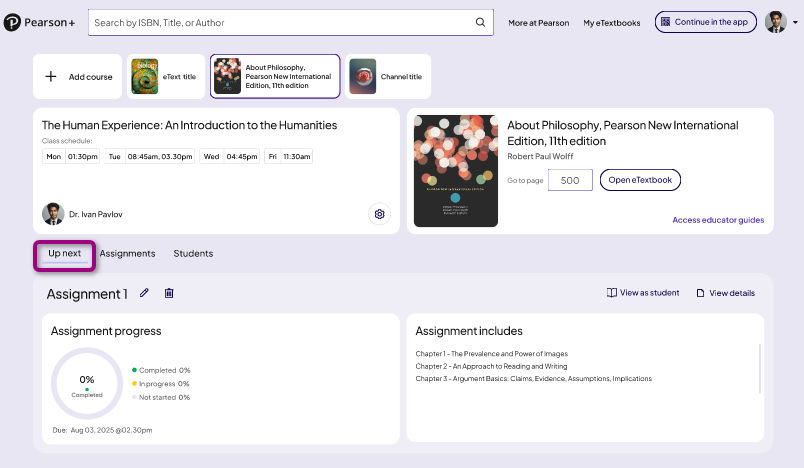
The Up next tab shows details about the next assignment that is due.
What you can do:
- View the Completion percentage of students who have completed the assignment.
- View the Completed past due percentage of students who completed the assignment after the due date.
- View the In progress percentage of students who have started the assignment.
- View the Not attempted percentage of students who have not started the assignment.
- View the assignment Due date.
- View the Chapter numbers and names included in the assignment.
- Select View as student to preview questions and try them as a student.
- Select View details to see completion details, the chapter and section included in the assignment, and a list of student progress.
Assignments
The Assignments tab shows a full list of assignments and sections. You can see assignment completion percentages and assignment due dates.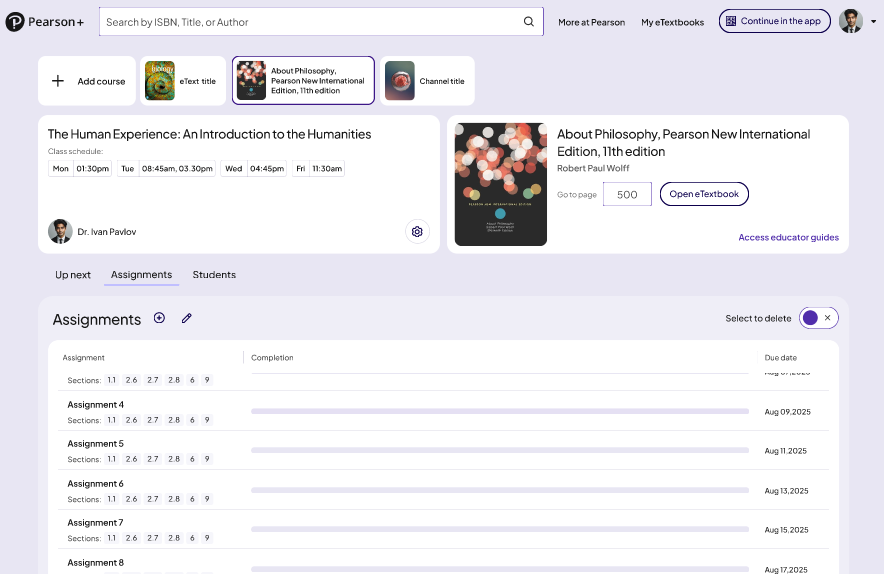
What you can do:
- Add custom assignments — Select
 to add a custom assignment.
 - Bulk edit assignments — Select
 at the top to bulk edit assignments.
 - Delete assignments — Use Select to delete toggle to enable multi-select check boxes to delete assignments.
- Edit a single assignment — Select next to the assignment name to edit a single assignment.
- Preview the assignment — Select an assignment to preview questions and try them as a student.
- View assignment details — Select an assignment to see completion details, the chapter and section included in the assignment, and a list of students in the class.
Students
The Students tab lists all students and their progress in the course.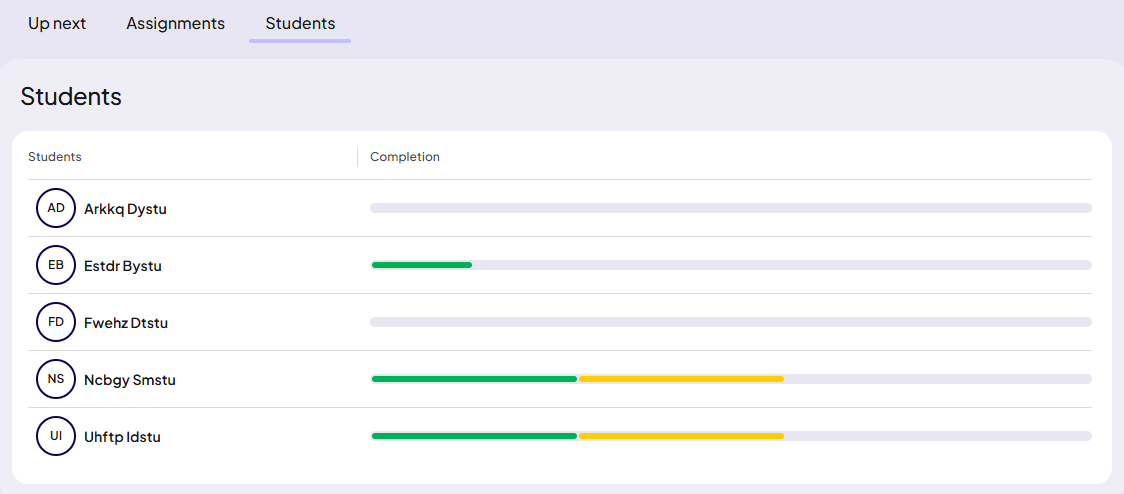
What you can do:
- View assignment completion percentage by student.
- Select a student’s name to see their progress and performance on all assignments.
Updated 05 Feb 2026