Create or edit assignments
 New feature: If your eTextbook has instructor-led assign and guide tools, you can create instructor-assigned, gradable reading assignments. When you upload your course syllabus, Pearson+ uses AI to extract data and generate questions for your assignments.
 Using an LMS? Start from your learning management system if you work in Blackboard, Canvas, D2L Brightspace, Moodle, Sakai, or Schoology.
 Upload syllabus to create assignments
- Start from your LMS or Pearson+ to find your assignable eTextbook course.
The first time you open your course, you’ll see a welcome message.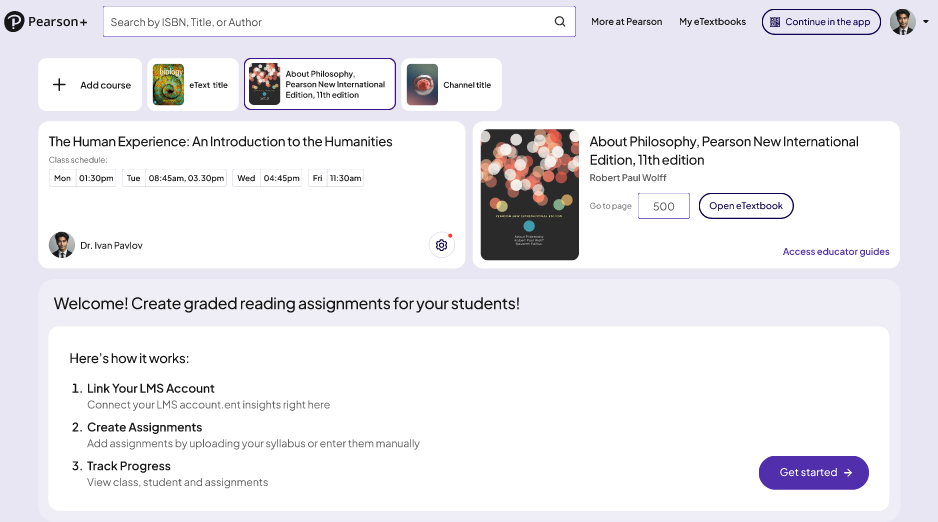
- Select Get started.
The Assignments tab opens.
- Select
 to search for your syllabus.
The File Explorer window opens.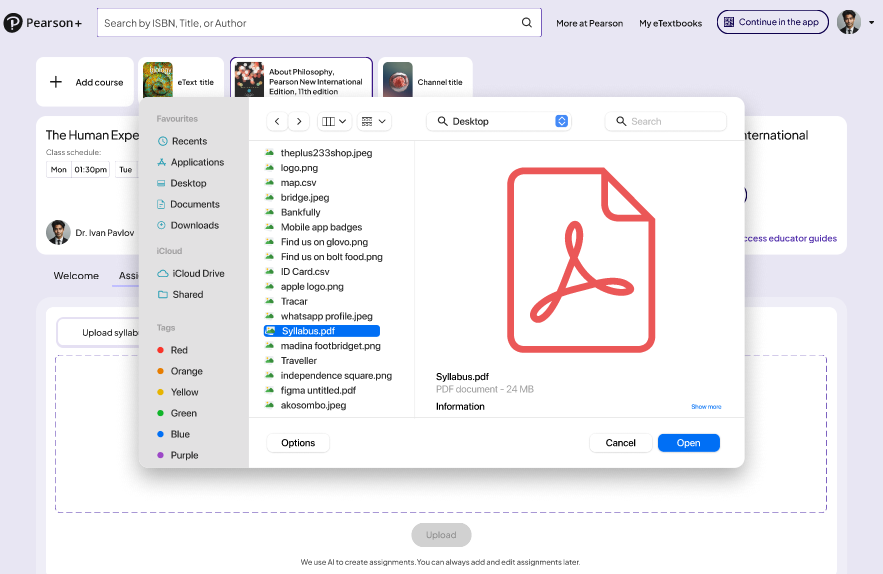
- Navigate to your syllabus file and select Open.
Your file shows on the Assignments tab.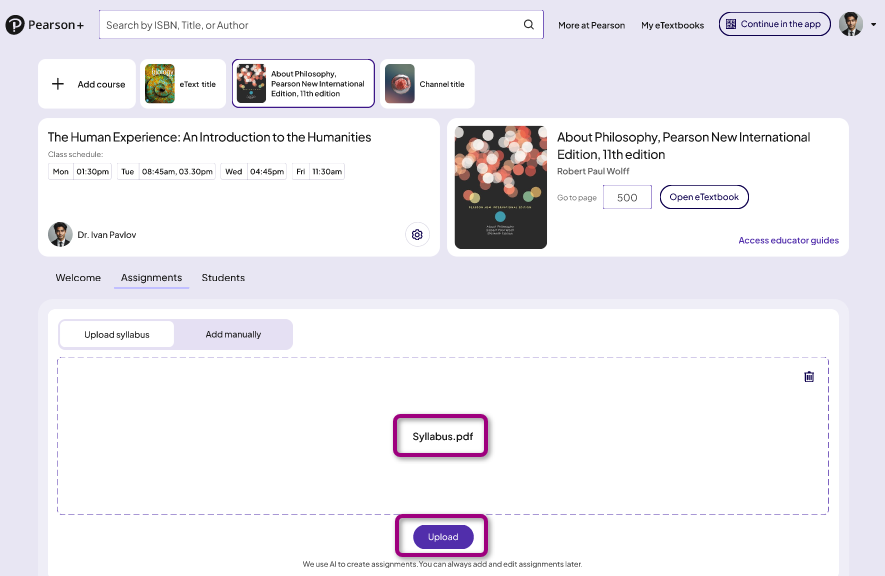
- Select Upload.
Pearson+ uploads your file, extracts data, and generates questions for your gradable reading assignments.
When the process is complete, you see a list of assignments.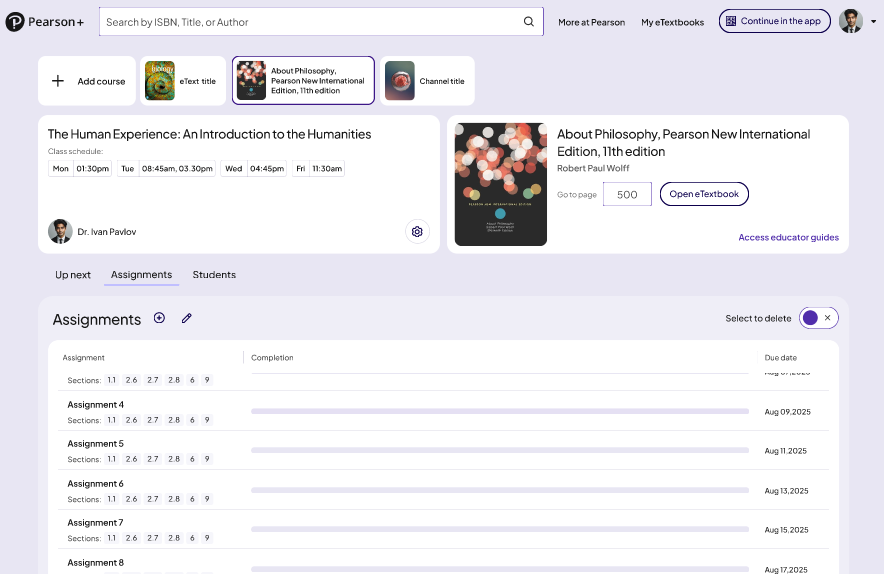
- Review your assignments. You might want to edit assignments or adjust due dates.
- Select Publish to make the assignments available to students.
Add custom assignments
- At the top of the Assignments tab, select
 to add a custom assignment.
The Add assignment window opens.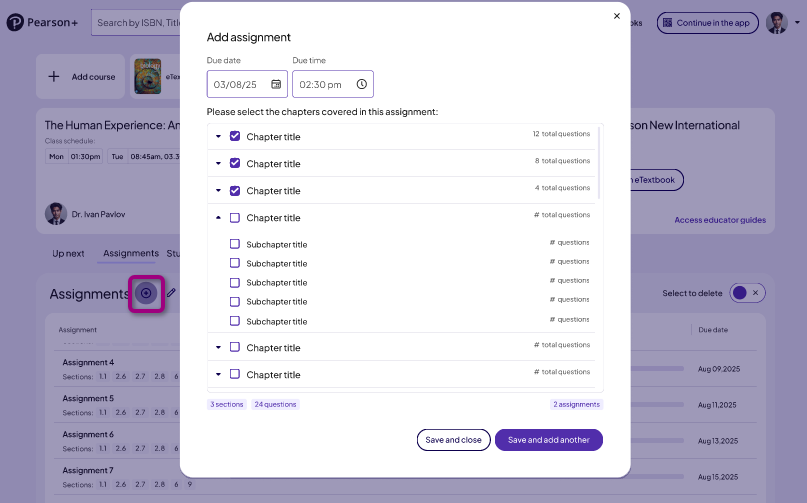
- In the Due date box, use
 to set the date the assignment is due.
 - In the Due time box, use
 to set the time the assignment is due.
 - Select the chapters to include in the assignment.
- Select Save and add another to add another assignment.
Or
Select Save and close to return to the Assignments tab.
Bulk edit assignments
You can bulk edit assignments as long as no student has worked on them.
When you update your syllabus and re-upload it, Pearson uses AI to bulk edit your assignments and due dates.
- At the top of the Assignments tab, select
 to bulk edit assignments.
The Edit assignments in bulk window opens. - Select to search for your syllabus.
The File Explorer window opens.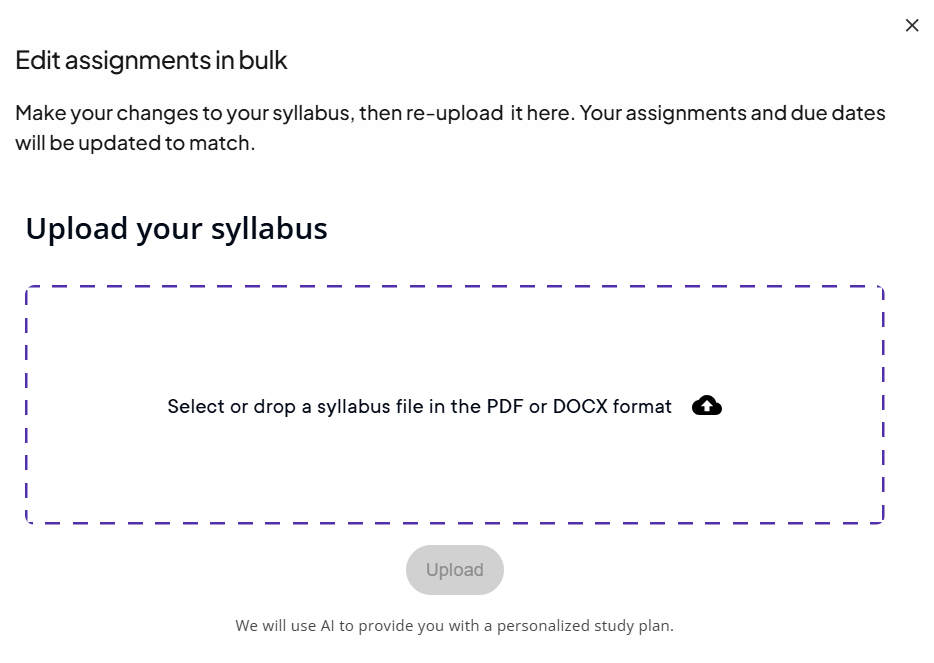
- Navigate to your syllabus file and select Open.
Your file shows in the Edit assignments in bulk window. - Select Upload.
Pearson+ uploads your file, extracts data, and updates questions for your gradable reading assignments. - When the process is complete, you see a list of assignments.
Delete assignments
You cannot delete assignments with results.
- Use the Select and delete mode toggle. This enables multi-select check boxes to delete assignments.
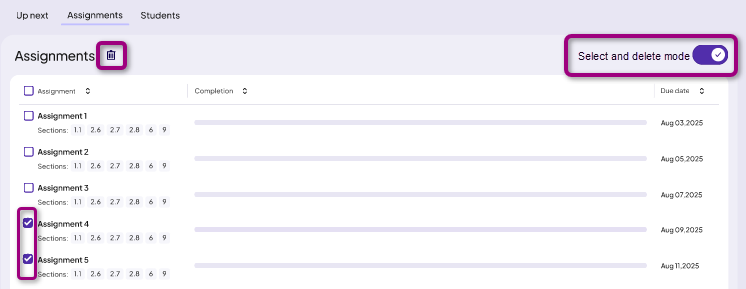
- Select one ore more assignments to delete.
- Select
 to delete the assignments.
Edit a single assignment
You can edit assignments as long as no student has worked on them.
- Next to the assignment name, select to edit a single assignment.
The Edit assignment window opens.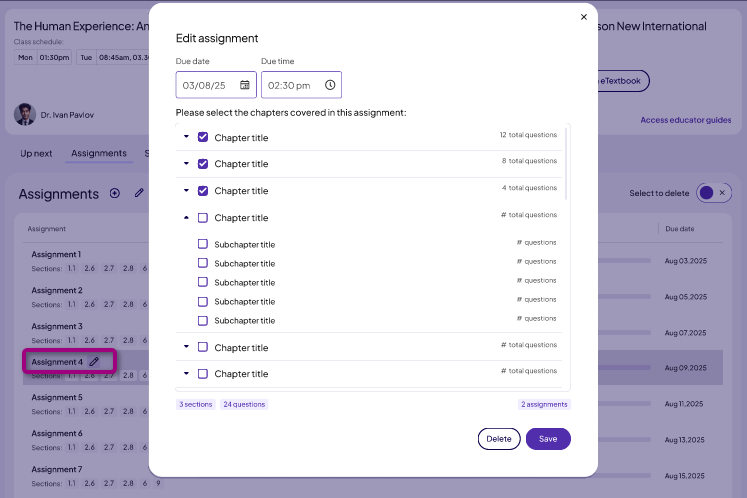
- In the Due date box, use to edit the date the assignment is due.
- In the Due time box, use to edit the time the assignment is due.
- Select or clear the chapters to include in the assignment.
- Select Save.
Or
Select Delete to delete the assignment.
Preview the assignment
You can preview the assignment and work the questions as a student.
- On the Assignments tab, select an assignment name.
- Select View as student.
The assignment opens in the eTextbook reader. Questions are embedded in the content.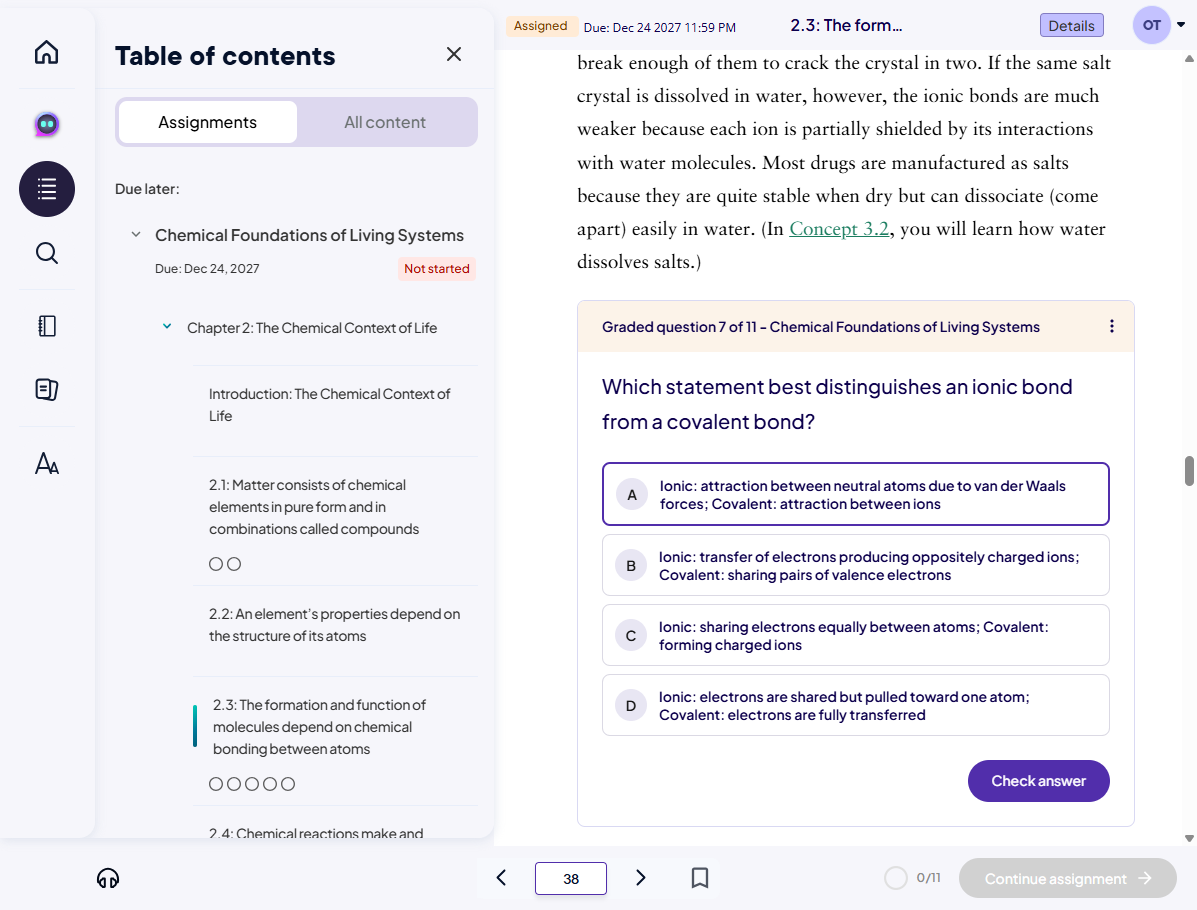
- After the assignment opens, select Details.
The Table of contents opens. On the Assignments tab, you can see the sections with questions. - Read the eTextbook content and answer the embedded questions.
- Optionally, choose a section in the Table of contents to navigate to the questions. Each section might have one or more questions.
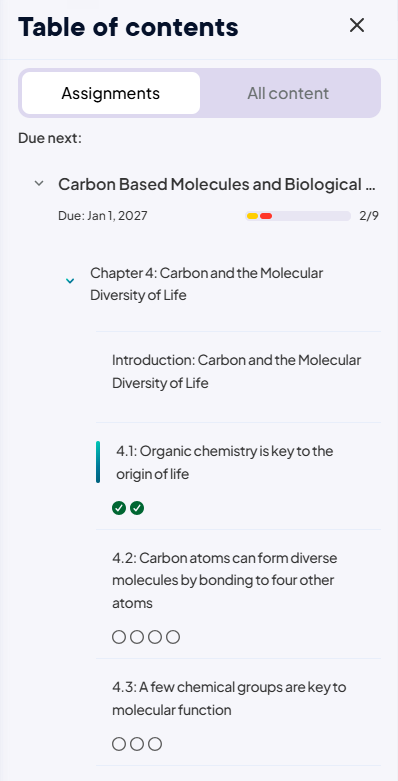
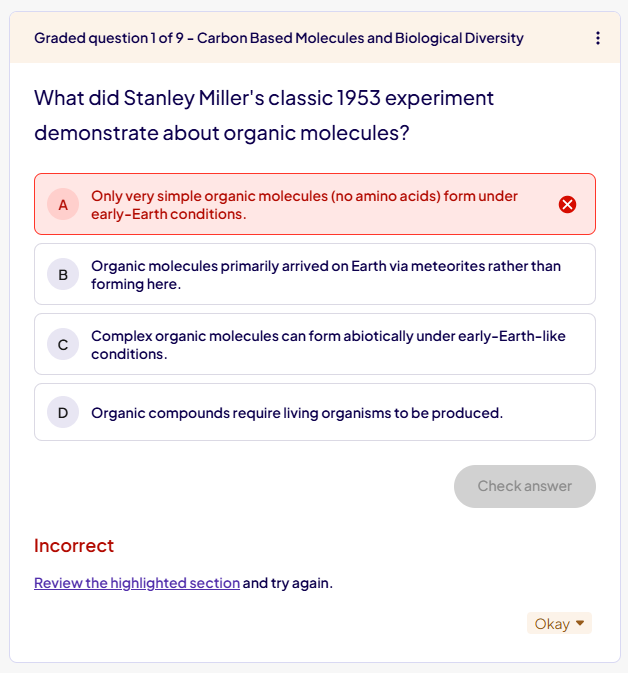
In this example, section 4.1 has two questions, section 4.2 has four, and section 4.3 has three. The assignment has nine questions in total. - Select an answer to the question and choose Check answer.
- If you choose an incorrect answer, you see:
- If you choose a correct answer, you see:
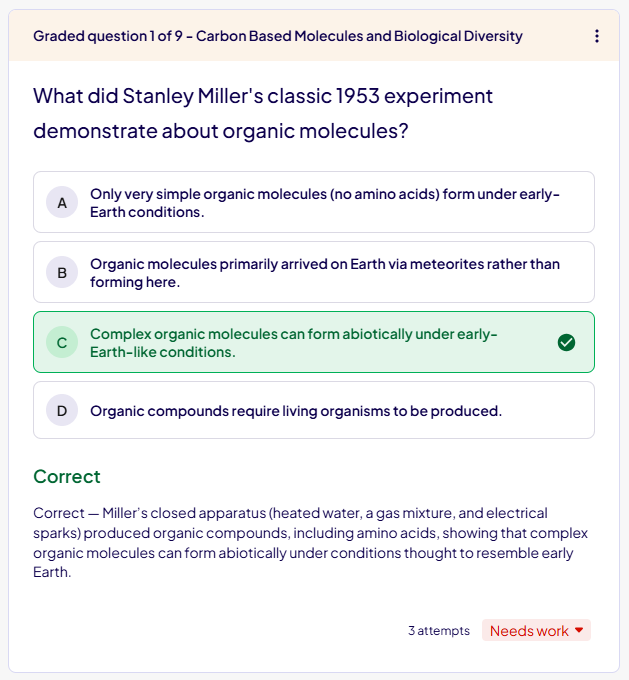
- Based on the number of attempts to answer correctly, you might see Needs work, Okay, or Great.
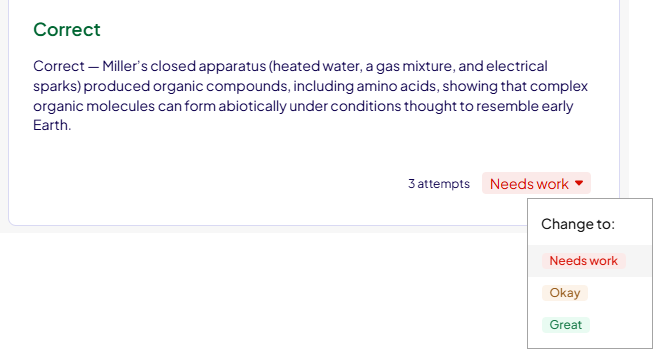
- If you choose an incorrect answer, you see:
- Track competency on topics. For example, students might change the feedback if:
- They selected the wrong answer by mistake.
- They took remediation and improved their understanding of a topic.
- After you answer all questions in a section, select Continue assignment to move to the next section.
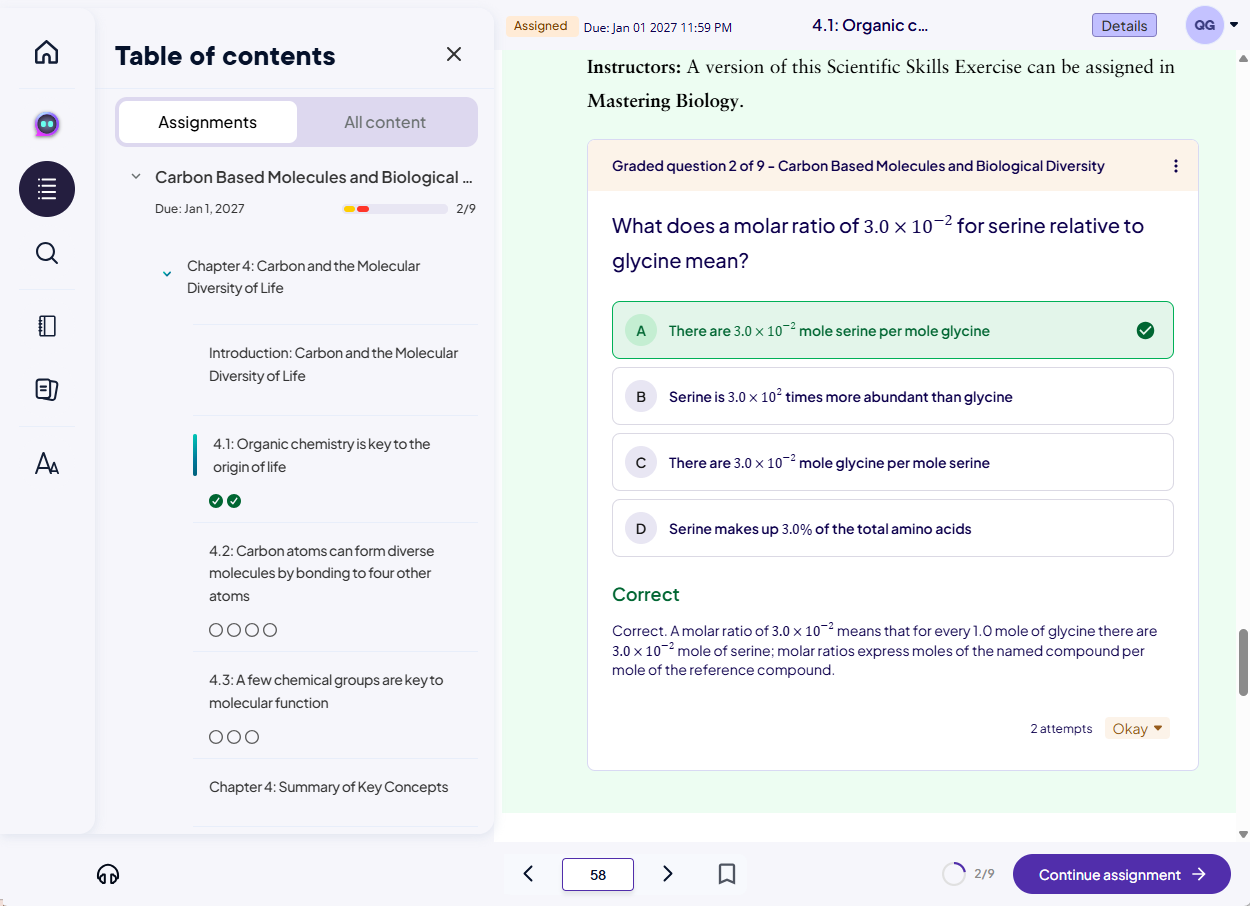
The eTextbook shows the next section.
After answering all questions, you can view a performance report.
See how students use the Performance report.
View assignment details
- On the Assignments tab, select an assignment name to see:
- Completion details
- The chapter and section included in the assignment
- A list of students in the class
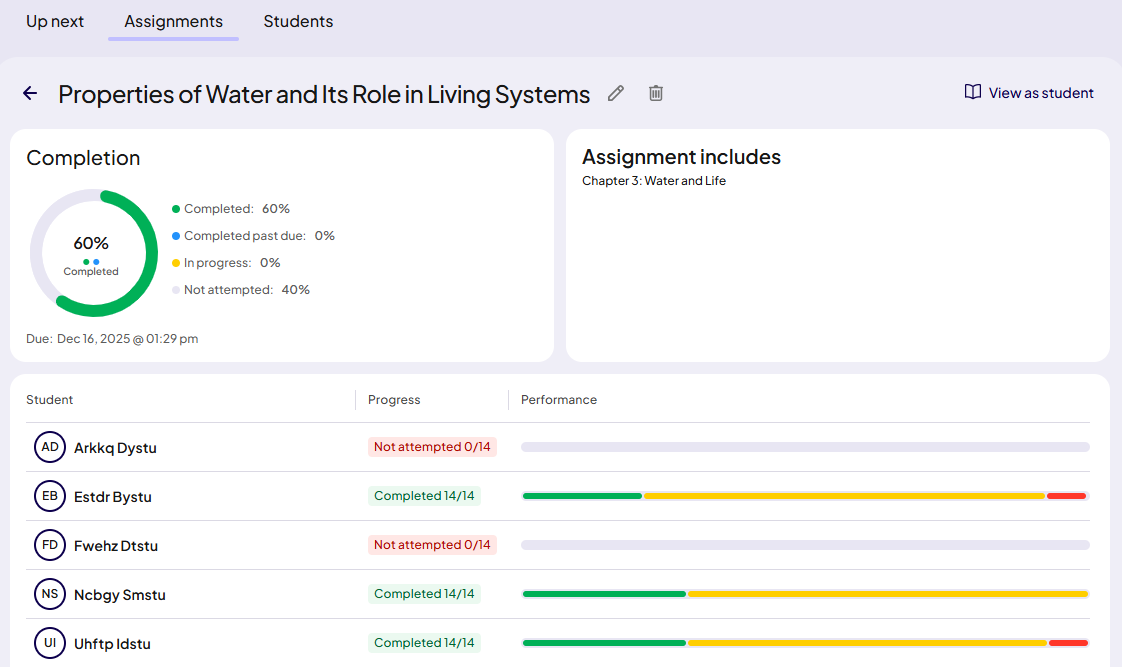
- Optionally, select a student's name to see their attempts and performance for each question.
Add or edit course settings
- On the course card, select
 and choose Course settings.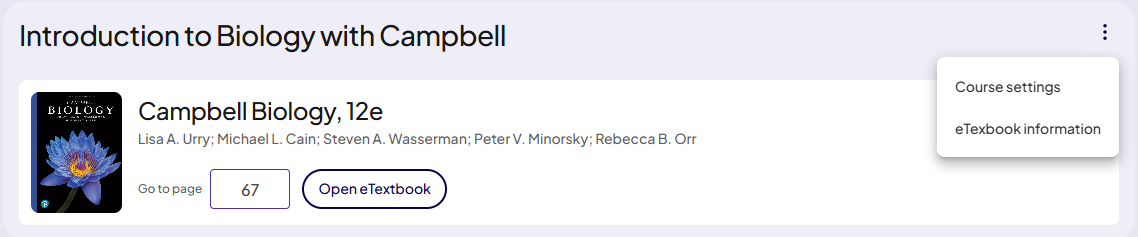
Your course opens in a new tab.
Updated 05 Feb 2026