Do assignments
In some courses, your instructor might assign gradable reading assignments. To do assignments, you'll answer questions in your eTextbook.
 Using an LMS? Start from your learning management system if you work in Blackboard, Canvas, D2L Brightspace, Moodle, Sakai, or Schoology.
 Open an assignment
- Start from your LMS or Pearson+ to open the dashboard.
- Select an assignment name to start working on it. The assignment opens in the eTextbook reader. Questions are embedded in the content.
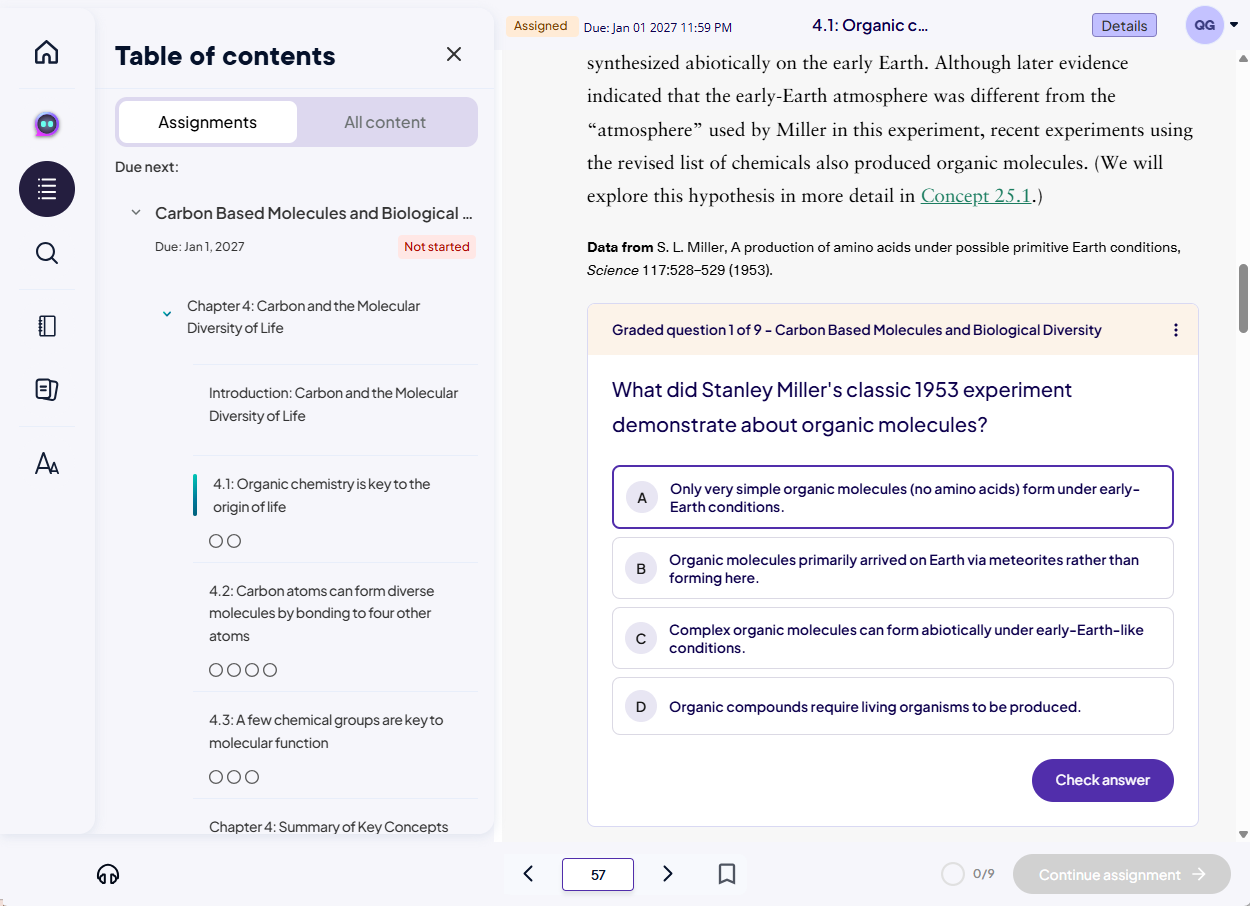
Answer questions
- After your assignment opens, select Details.
The Table of contents opens. On the Assignments tab, you can see the sections with questions. - Read the eTextbook content and answer the embedded questions.
- Optionally, choose a section in the Table of contents to navigate to the questions. Each section might have one or more questions.
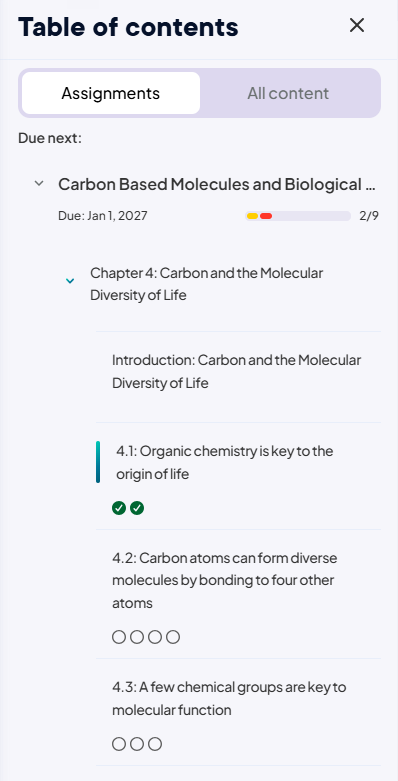
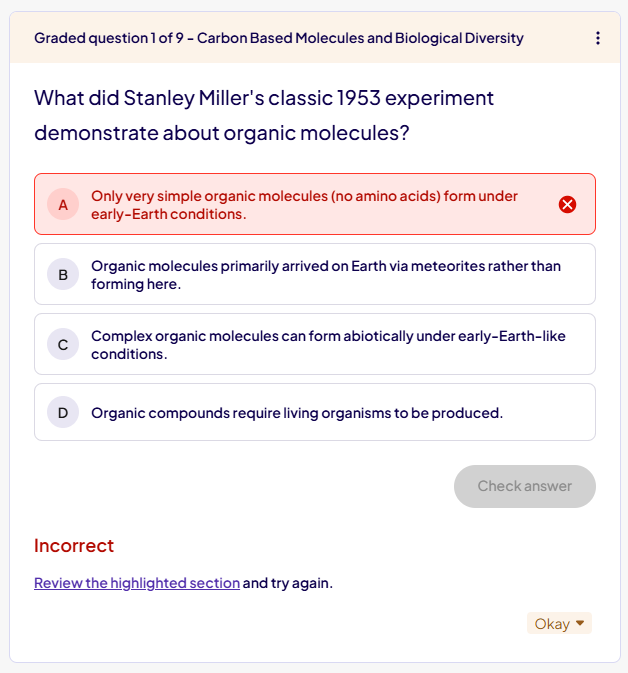
In this example, section 4.1 has two questions, section 4.2 has four, and section 4.3 has three. The assignment has nine questions in total. - Select an answer to the question and choose Check answer.
- If you choose an incorrect answer, you see:
- If you choose a correct answer, you see:
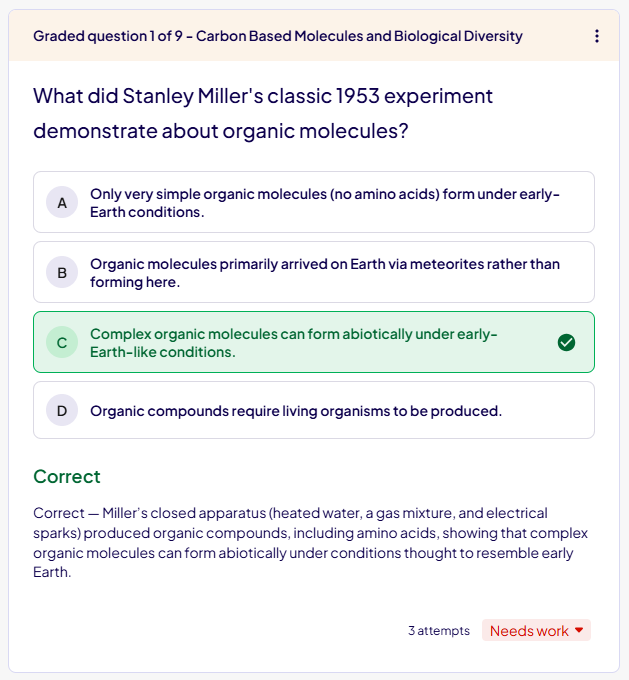
- Based on the number of attempts to answer correctly, you might see Needs work, Okay, or Great.
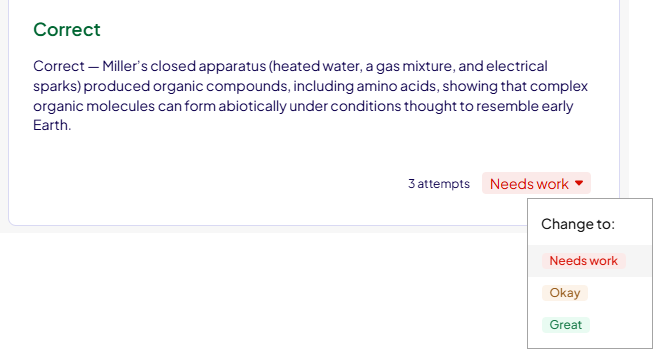
- If you choose an incorrect answer, you see:
-
Track your competency on topics. For example, you might change the feedback if:
- You selected the wrong answer by mistake.
- You took remediation and improved your understanding of a topic.
- After you answer all questions in a section, select Continue assignment to move to the next section.
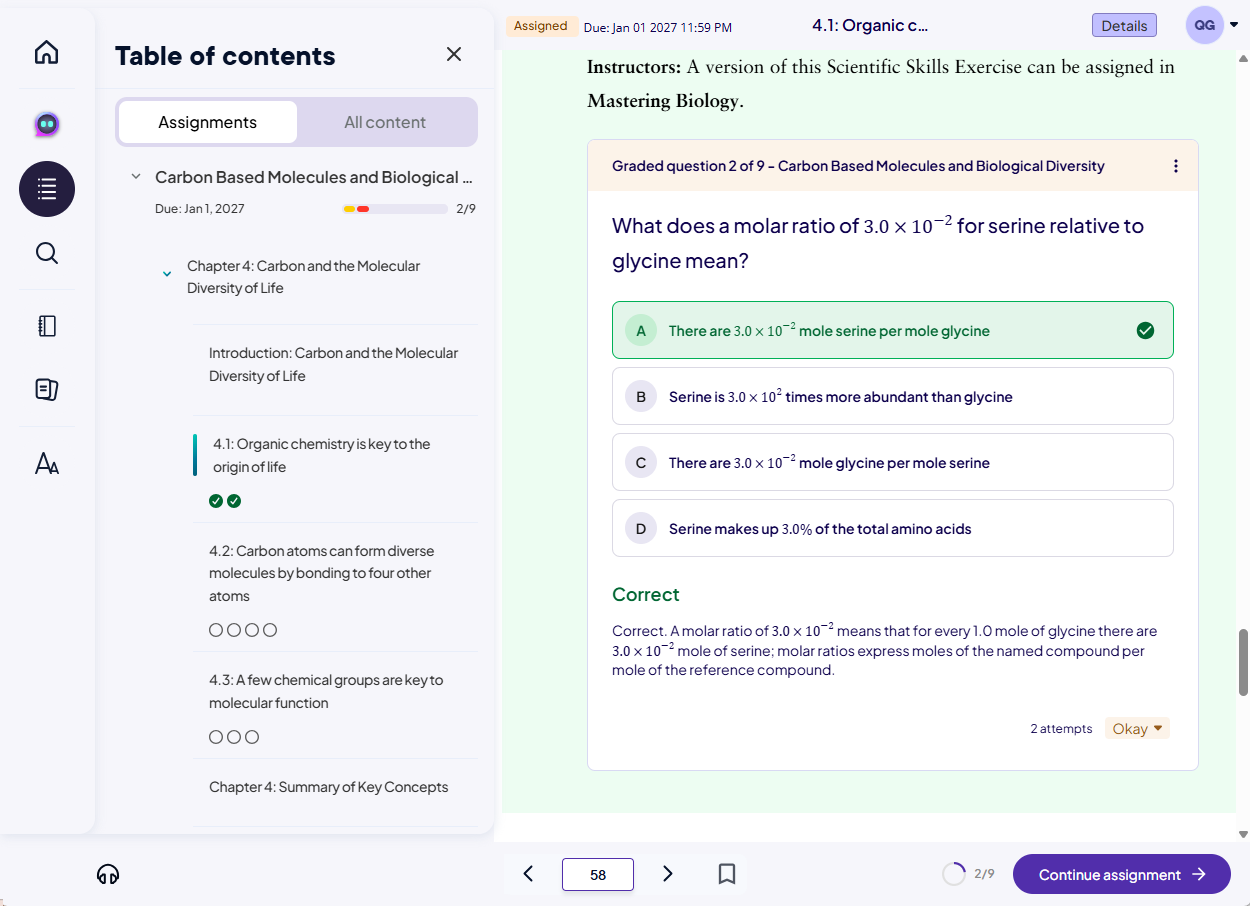
The eTextbook shows the next section.
After answering all questions, you can view a performance report.
Get help with a question
- In the question header, use the 3-dot Options menu to get help.
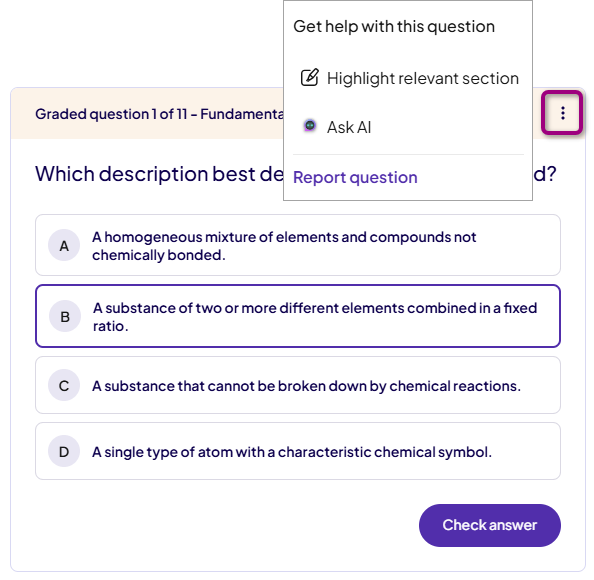
- You can select:
- Highlight relevant section — Read the section to help you answer the question.
- Ask AI — Use the AI Study Tool to help you answer the question.
- Report question — Send comments or suggestions about question content to Pearson.
View performance report
- After you complete an assignment, select View report.
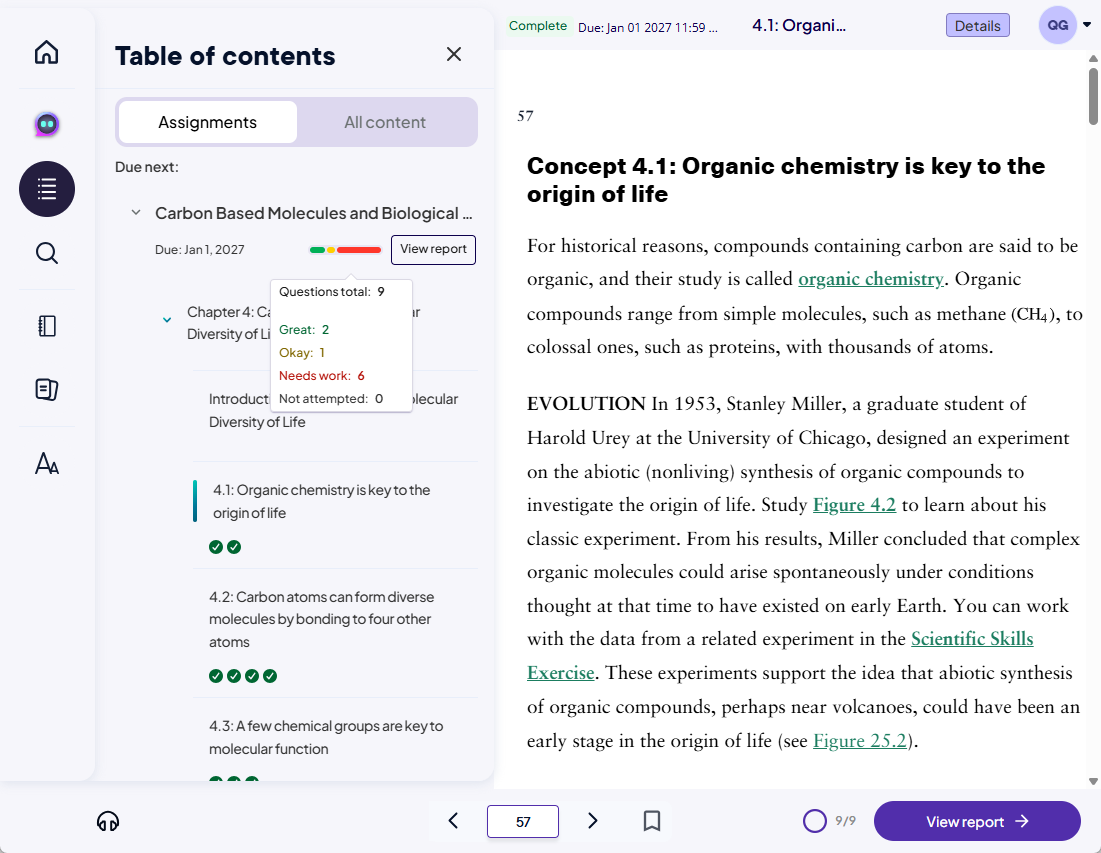
Your performance report opens.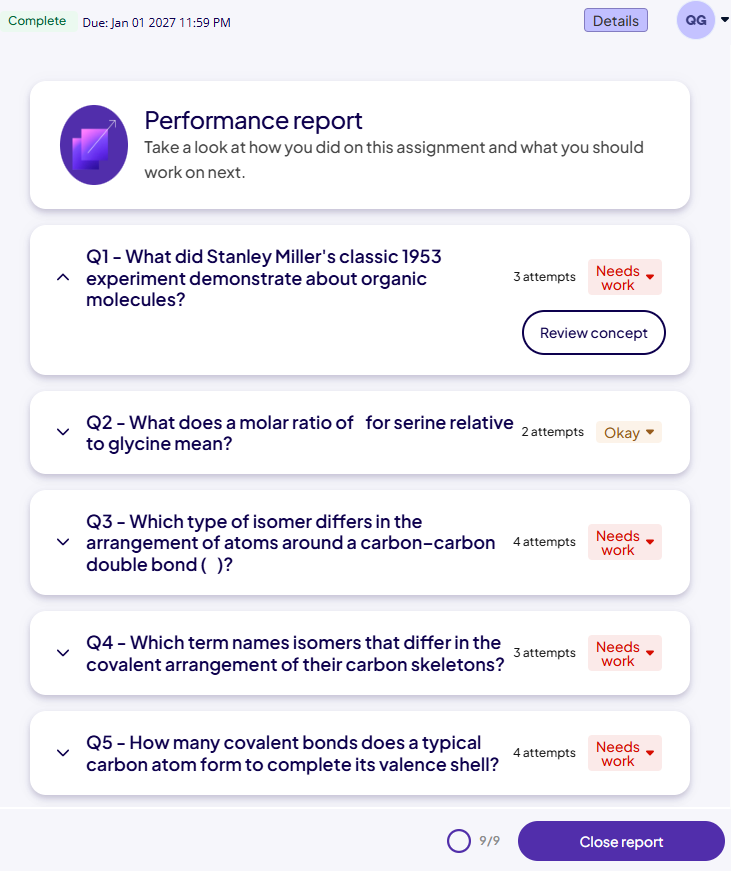
- Use
 to expand a question to see more information.
 - Select Review concept to open the AI Study Tool.
- Select Close report to return to the eTextbook.
Updated 29 May 2026