Respond to questions
In Live Response, you answer questions during a live in-class session. Your instructor monitors responses to determine where you or others might need help.
 Join a live session
- Sign in to your course.
- Go to MyLab & Mastering.
- Select Sign in to your course.
- Enter your username and password and select Sign in.
Or
Select Sign in with code. Enter your username and select Send Code. You'll receive a one-time code by email or SMS (if your account has a valid phone number). The code is valid for 10 minutes.
After you sign in, the My courses page opens. - On My courses, find the course card and open your course.
Your Course Home opens.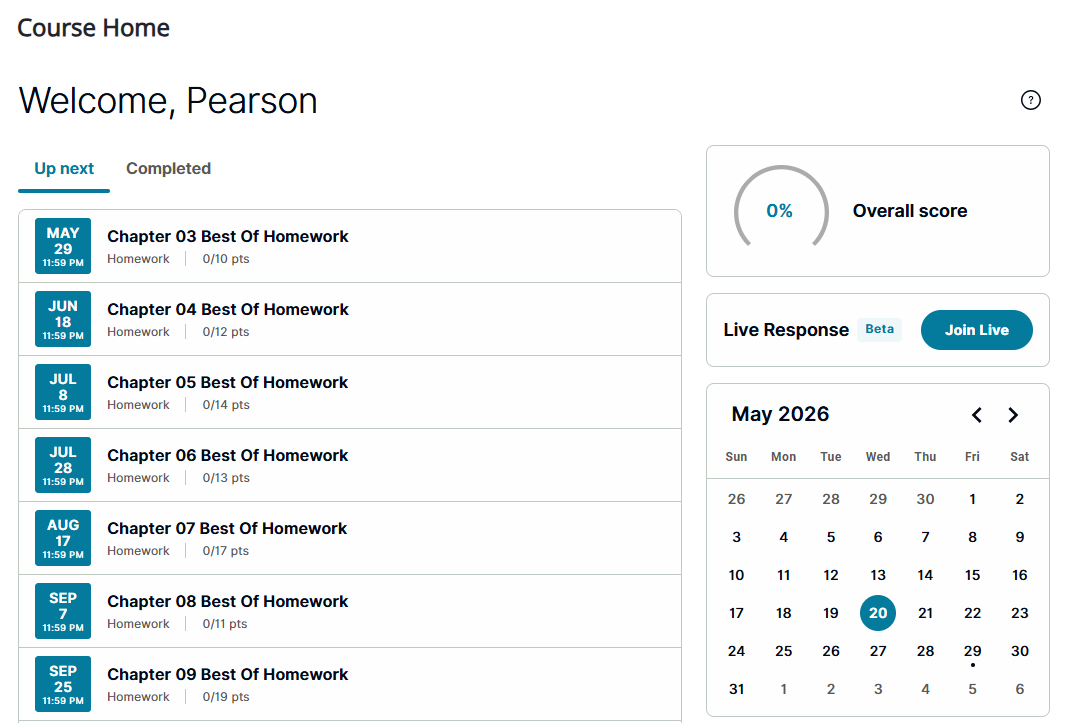
- From the Live Response widget, select Join Live.
Live Response opens. - Go to Live Response.
- Enter your username and password and select Sign in.
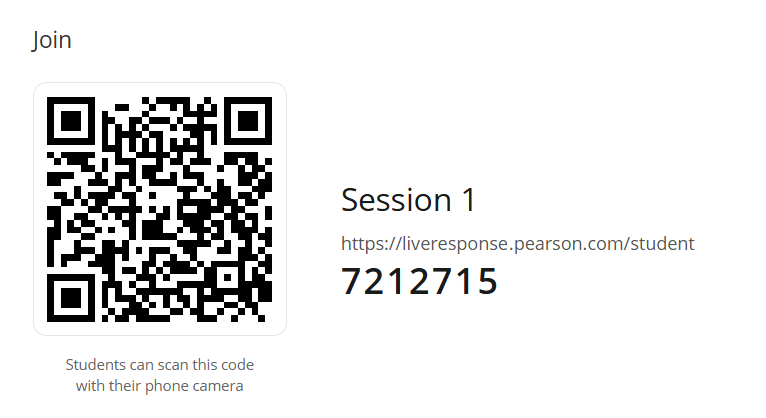
Live Response opens. - Scan the code with your phone's camera to join the live session.
Live Response opens. - When Live Response opens, select the Sessions tab.
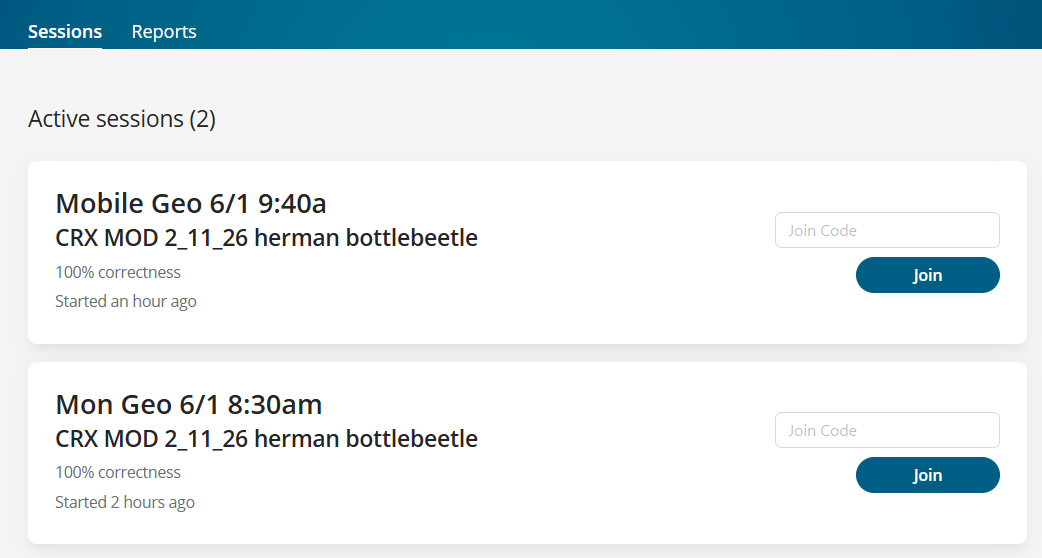
- Enter the join code provided by your instructor.
- Select Join.
Your instructor tracks your attendance one of the following ways:- By sign in — Live Response tracks attendance when you enter the join code.
- With geofencing — Live Response sets a geofence around your classroom. It tracks attendance by checking your location when you enter the session code. Learn how to share your location for attendance.
- Wait for your instructor to start the session.
From your MyLab or Mastering course
From your web browser for a standalone course
From the Join code your instructor shares
When your instructor starts a live session, they might show a Join code on their screen.
Use any computer or mobile device
You can use Live Response on your laptop, desktop, or any mobile device. It's best practice to use the latest version of Safari, Chrome, or Microsoft Edge.
Respond to questions
- After you join a live session, wait for your instructor to send the first question or group of questions.
- Respond to the question and select Submit to display the next question.
Or, you might be able to use to move among questions and respond.
 - Use
 to see a summary of the total questions in progress and completed.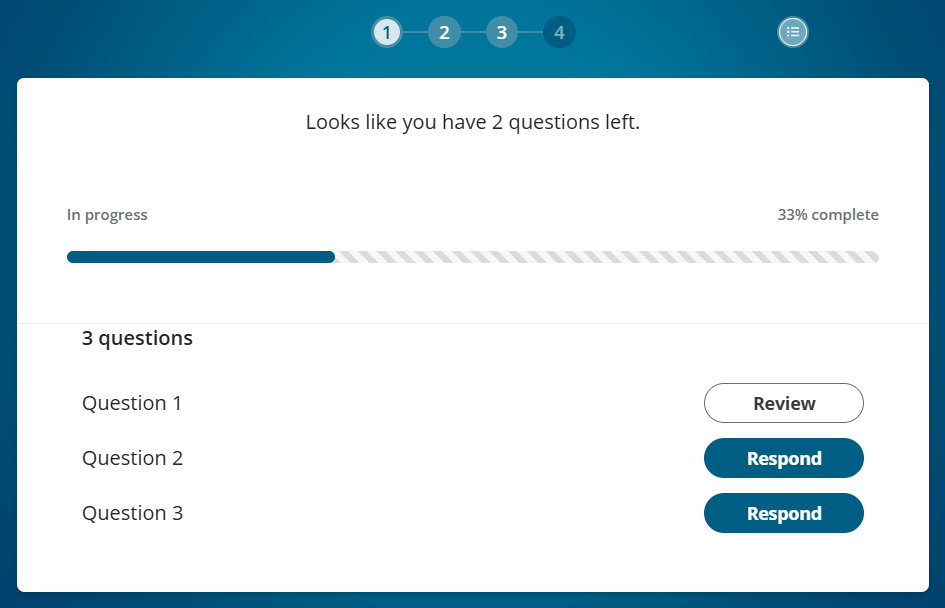
You can view and submit questions in any order. Use the navigation to revisit a question and see or change your response. Learn about question types.
Respond to questions that your instructor sends again
If your instructor sends questions again, you see an update message.
- Use the navigation to select a question and see your previous response.
- Change your answer, then select Change answer.
When you finish changing responses, wait for your instructor to tell you the next steps.
See if your responses were correct
If your instructor shares an answer during a session, the question navigation shows whether your response was correct. You also can read your instructor's comments, if any.
After a session ends, you can review your results from your Past session reports list.
Updated 01 Jun 2026