Set up Learning Catalytics and enable it for students
Updated 18 Sep 2025
To use Learning Catalytics with your course, start by selecting  In-class Learning (Enrich Your Course area) on the Course Home.
From there you can click Preview & Setup to establish a connection between your Mastering course and Learning Catalytics. A new Learning Catalytics course is created automatically, which you can use to explore Learning Catalytics features before deciding whether to use it with your Mastering course.
When you're ready, follow the instructions below so students in your course can use Learning Catalytics.
 To enable students to purchase and use Learning Catalytics
- From the Mastering Course Home, select Learning Catalytics (Enrich Your Course area).
- If you have not already done so, select Preview & Setup to explore Learning Catalytics features before you decide to use it and ask students to purchase it.
- Under Step 2, select view/edit message to read and make changes to the message that you can send to students to notify them to confirm or purchase access to Learning Catalytics.

- To send the email message as soon as you select Use with Students, select the Notify students check box. (If you want to use the message later, you can copy and save it from this box now. You won't see this option again.)
- Select Use with Students.
Important: This step is essential if you are planning to transfer Learning Catalytics scores to the Mastering Gradebook.
What happens next automatically
- Mastering places the
 Learning Catalytics option (top right) on the student Course Home page. This feature appears for all students currently enrolled in your Mastering course, and for all students who enroll later.
 - If you selected the Notify students check box: Mastering sends the email message to all students currently enrolled in your Mastering course.More about this email notification
The email is sent as a message from you to the email address associated with each student’s Pearson account. The subject line is "A message from your instructor." The same message is also posted in the Announcements area of the student Mastering Course Home page. Students who enroll later can see the message there.
- Names of all students enrolled in your Mastering course are added to the corresponding Learning Catalytics course roster. The Learning Catalytics roster is updated automatically when changes occur in the Mastering roster.
What students must do next
Important: To establish their Learning Catalytics connection, students MUST select Learning Catalytics (top right) on their Mastering Course Home page.
If students fail to do this, their scores will not appear in Mastering if you decide to transfer Learning Catalytics Scores to the Mastering Gradebook.
Some students see a message confirming that they already have access (included with an eText purchase and some new textbook purchases). Other students are prompted to purchase access, either with or without the eTextbook associated with the course.
Encourage your students to confirm their access BEFORE you deliver your first Learning Catalytics session. If they wait until it's time to join a session, those who haven't purchased access will be prompted to do so when they try to join.
Student access from Mobile Mastering —
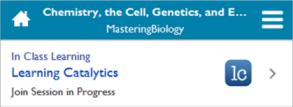
After students have established their Learning Catalytics connection from their computer, those whose course is available in Mobile Mastering can join your Mastering course on their device and then tap Join Session in Progress in the Mobile view. (This option appears only when an in-class or out-of-class session is active.)
See also: Overview: Learning Catalytics | Student Help for Learning Catalytics