Work in assignments
How you open and do assignments depends on how you access MyDietAnalysis (MDA).
 How to submit reports or assignments in MyDietAnalysis (2:28)
 From your Mastering course
Submit an assignment
If you open MyDietAnalysis from your Mastering course, you'll do assignments in the student player. It checks answers and sends the results to your gradebook.
- Select Assignments from your course navigation.
The Homework and Tests page opens.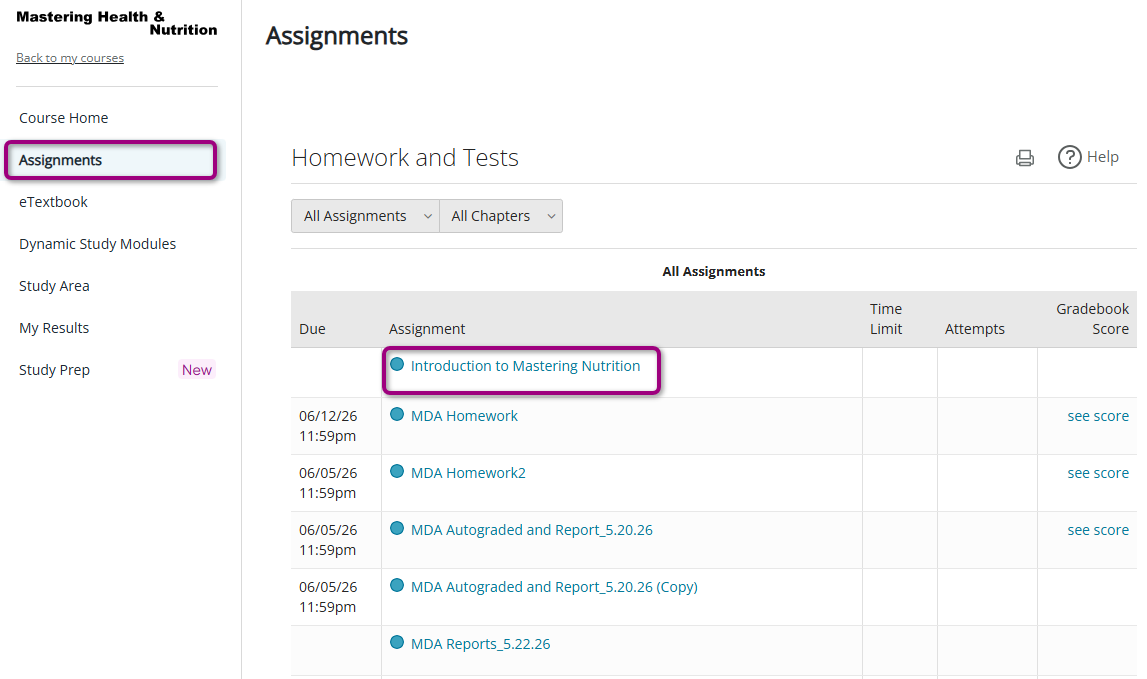
Or, select an assignment on your Course Home.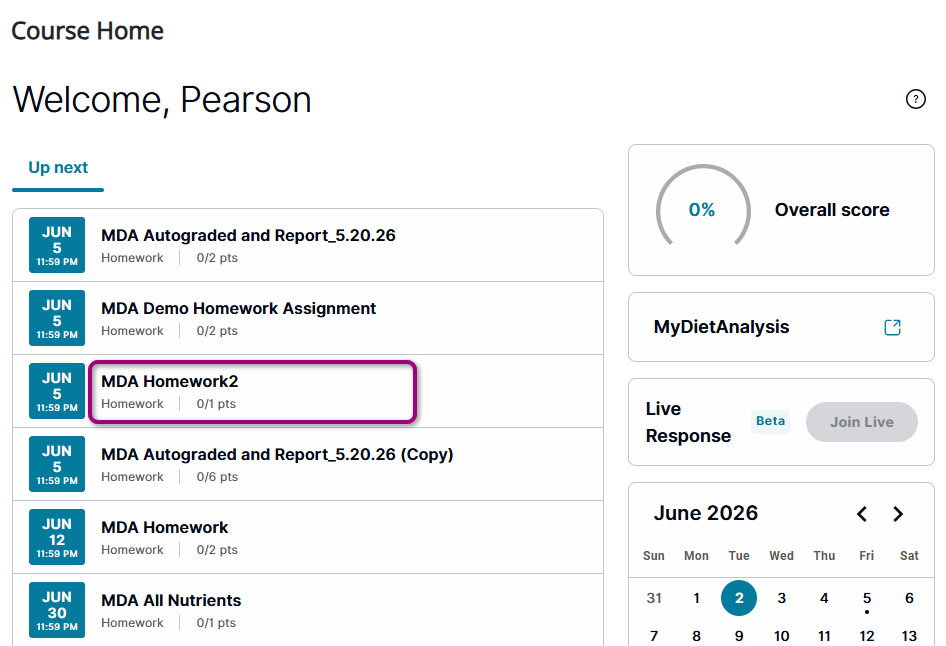
The assignment opens in the student player.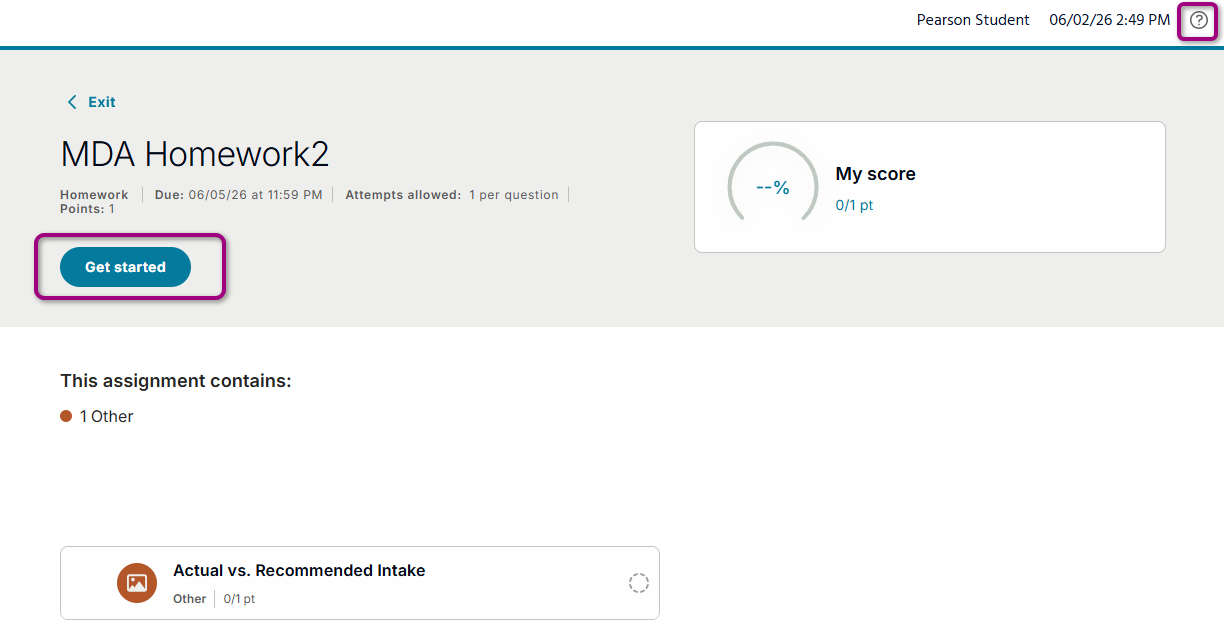
- Select Get started.
- Use the in-product Help icon to learn more about doing assignments.
Resume and finish an assignment
You can return and continue working up to the due date or until you run out of attempts.
- From your Course Home, select an assignment.
The assignment opens in the student player.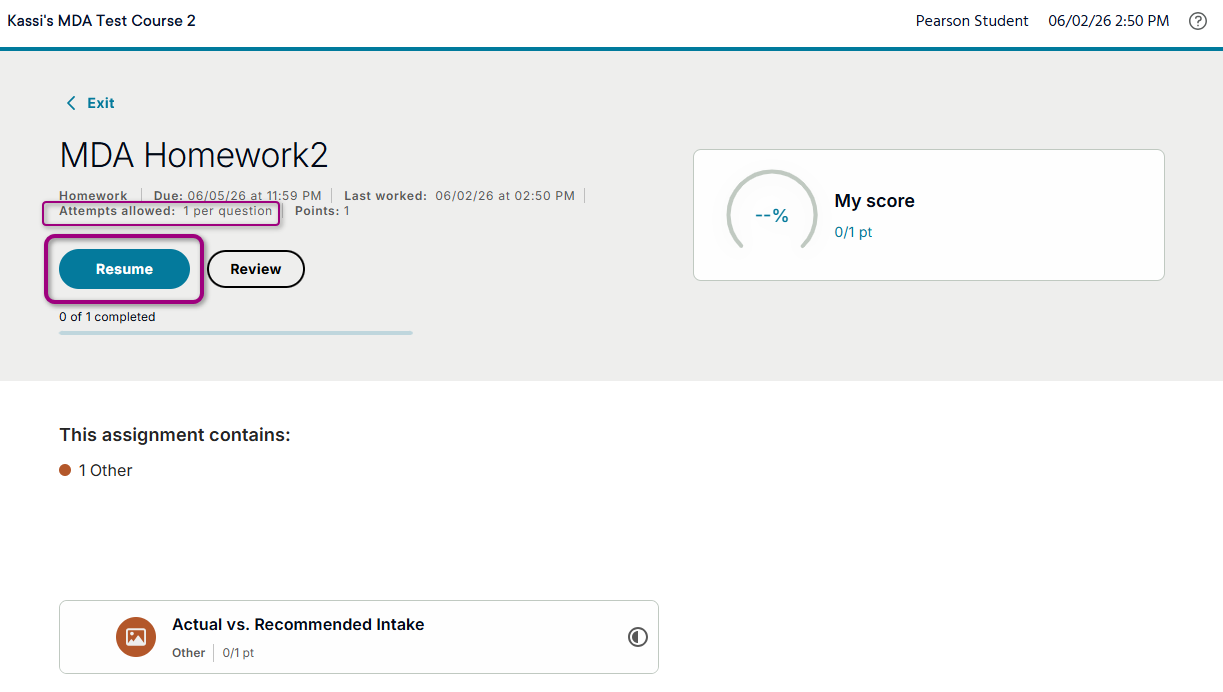
- Under Attempts, see how many times you can try the assignment. An infinity symbol means you have an unlimited number of attempts.
- Select Resume.
From your standalone course
If you open MyDietAnalysis from your standalone course, you can submit nutritional reports.
Submit a report
- In standalone MyDietAnalysis, open the Reports page.
- Find the report to view.
- Select the report name.
- Select the days and meals to include in the report.
- If you do not select days and meals, the report includes information on all days and all meals.
- If you change which days or meals to include, the report automatically updates.
- Optionally, select Add note to include a note with your submitted report.
- Enter any notes in the field provided, then Save.
- Optionally, use
 to hide your profile information.
 - Select Submit.
- Select
 to go back to the Reports list.
Updated 24 Jun 2026