Quick start: MyDietAnalysis student
Get started with MyDietAnalysis (MDA). Work in your nutrition course through hands-on diet and activity tracking.
- First steps
- Get to know your course
- Work in assignments
- Check results and review work
- How do I? videos
First steps
Create a student account
Register and enroll as a student to sign in to Pearson products. Use the same account for any Pearson course.
Your instructor provides registration instructions. The instructions have a course invite link and a course ID or program ID to register for your course.
 Read how to create an account
 Watch how to create an account (3:01)
Open MyDietAnalysis
Depending on your course, you can open MyDietAnalysis:
 From your Mastering course
- Go to MyDietAnalysis.

- Select Sign in to Mastering.
The Sign in page opens.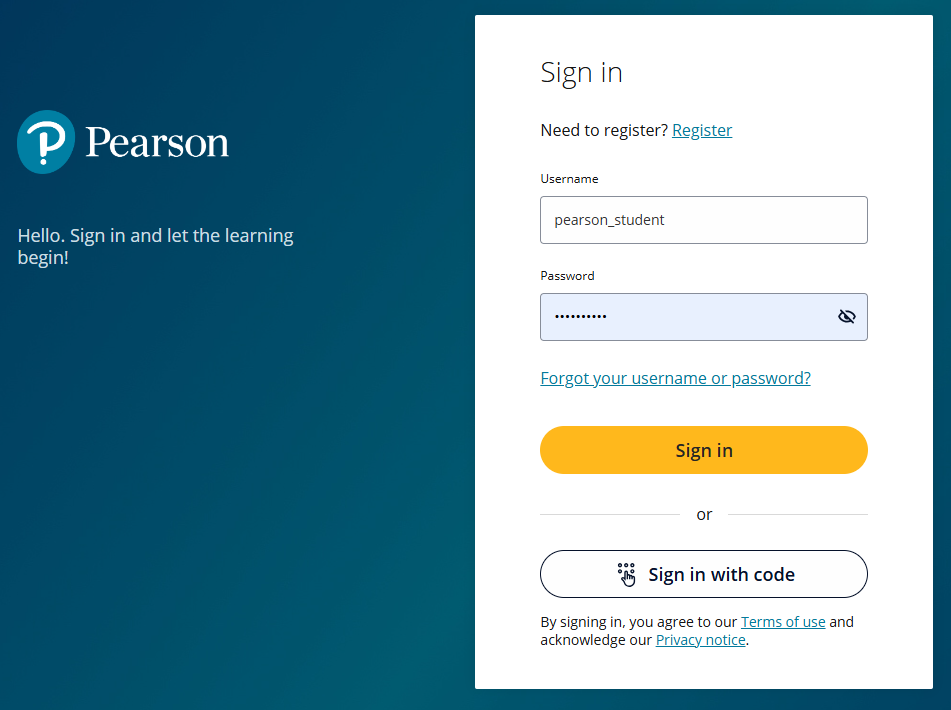
- Enter your username and password and select Sign in.
Or
Select Sign in with code. Enter your username and select Send Code. You'll receive a one-time code by email or SMS (if your account has a valid phone number). The code is valid for 10 minutes.
After you sign in, the My courses page opens. - On My courses, find the course card and open your course.
Your Course Home opens.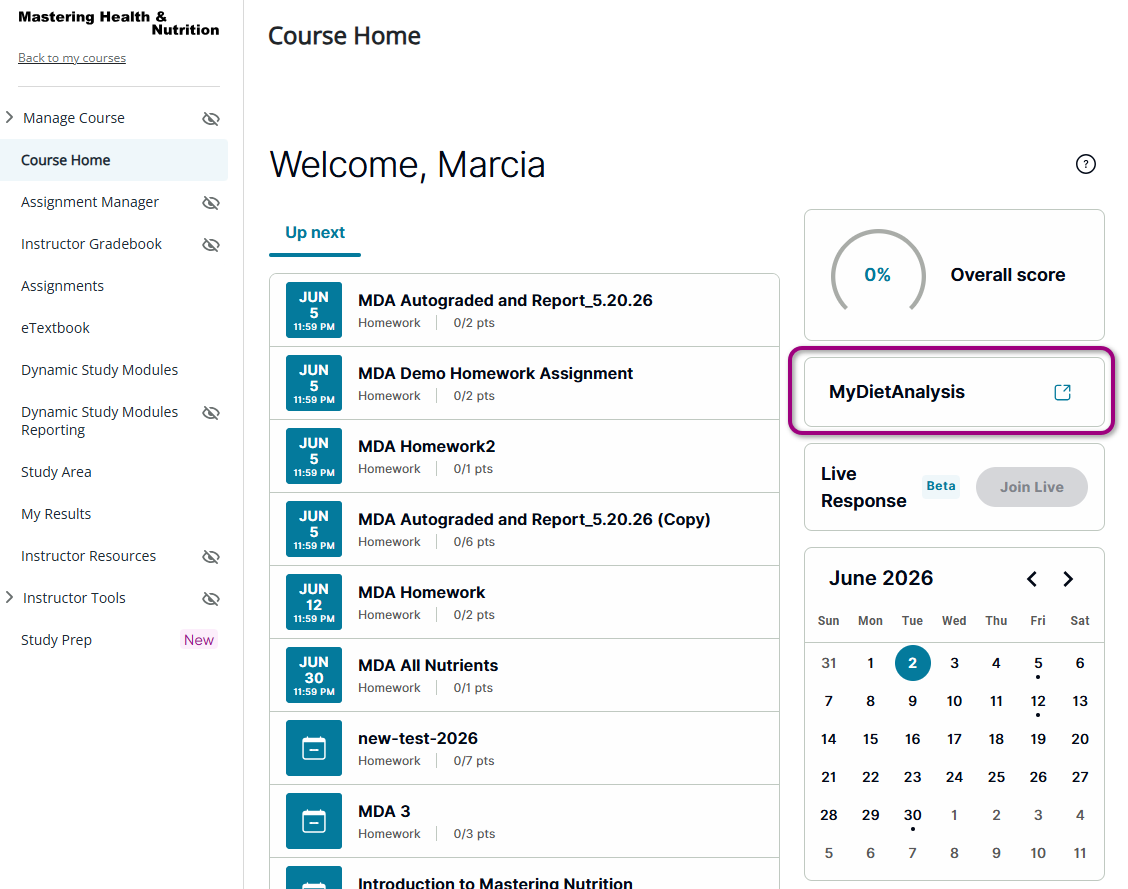
- Select MyDietAnalysis from your Course Home navigation.
MyDietAnalysis opens in a new tab showing the Profiles page.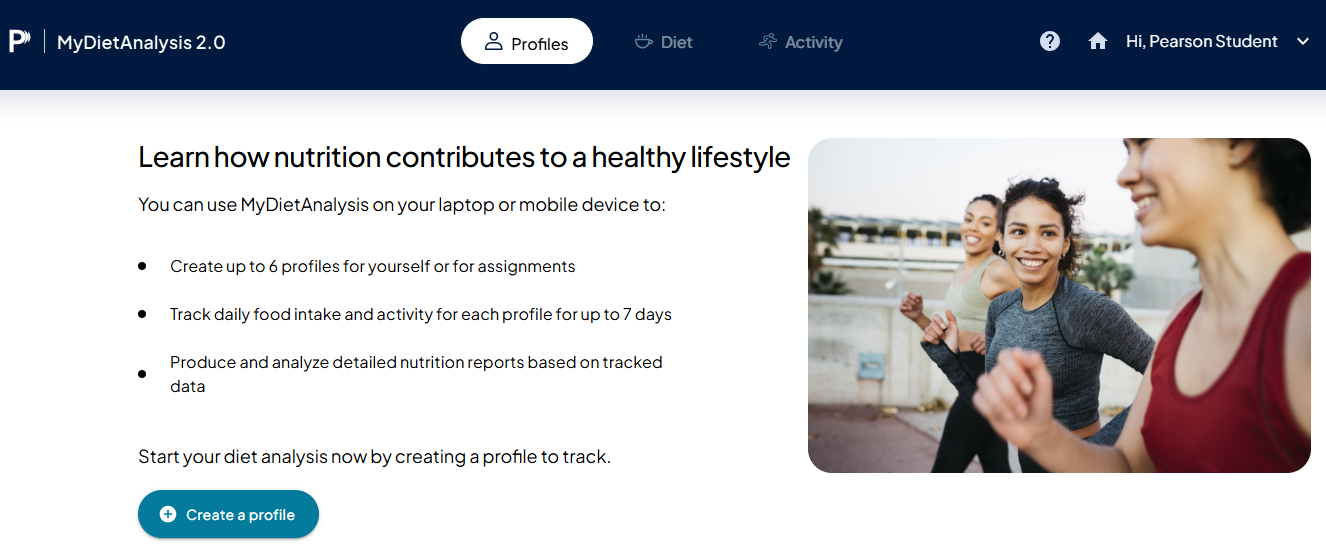
From your standalone course
- Go to MyDietAnalysis.
- Select Sign in to MyDietAnalysis.
The Sign in page opens. - Enter your username and password and select Sign in.
Or
Select Sign in with code. Enter your username and select Send Code. You'll receive a one-time code by email or SMS (if your account has a valid phone number). The code is valid for 10 minutes.
MyDietAnalysis opens showing the Profiles page.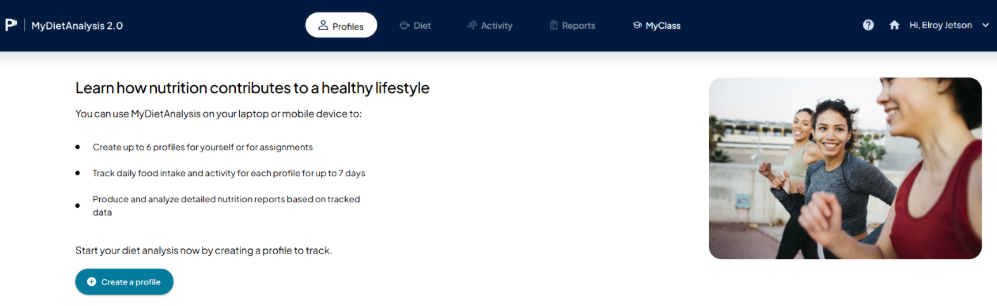
Get to know your course
Create profiles
You can create up to six profiles. Each profile tracks up to seven days of diet and physical activity.
- Open the Profiles page.
- Select Create a profile.
Or
If you have existing profiles, select Create another profile.
The Create a profile page opens and you can add information.
View recommendations
From the Profiles page, you can view dietary recommendations based on the information entered in the profile.
Manage diet
The Diet page lets you add food and personalize your diet tracker for up to seven days for each profile you create.
- Use the Find or create food & add to diet tracker pane to search for foods and add them to the diet tracker.
- Use the Add days & personalize diet tracker pane to add more days to the diet tracker. You can also add food to the days you are tracking.
Track activity
The Activity page lets you track activity for up to seven days for each profile you create.
- In the Find activities & add to activity tracker pane you can search for activities and add them to the activity tracker.
- In the Add days & personalize activity tracker pane you can add more days to the activity tracker. You can also add activities to days you are tracking.
Work in assignments
How you do assignments depends on how you access MyDietAnalysis.
Do assignments in Mastering
To work in assignments, you'll answer most questions in an online learning tool called the student player. The player automatically checks answers and reports the results to you and to your instructor. You can work on tablets or computers, but answering questions on your smartphone is not recommended. When you do homework, you usually can get help while you answer questions.
Do assignments in standalone
The Reports page is where you can submit nutritional reports.
Check results and view work
How you check results and view work depends on how you access MyDietAnalysis.
See your results in Mastering
The Results page is where you can see your results for the course and scores for assignments. You can review your past work in the student player unless your instructor prevents it.
See your results in standalone
The MyClass page is where you can submit reports or view previously submitted reports.
How do I? videos
Refer to short How do I? videos to get started.
Get started with MyDietAnalysis (4:17)
How to submit reports or assignments in MyDietAnalysis (2:28)
Updated 24 Jun 2026