Work in MyClass
After you start your course, you can review results, join a different course, or leave a course.
How you work in your course depends on how you access MyDietAnalysis (MDA).
 From your Mastering course
See your results
- From your Course Home, select My Results from the menu.
The Results page opens.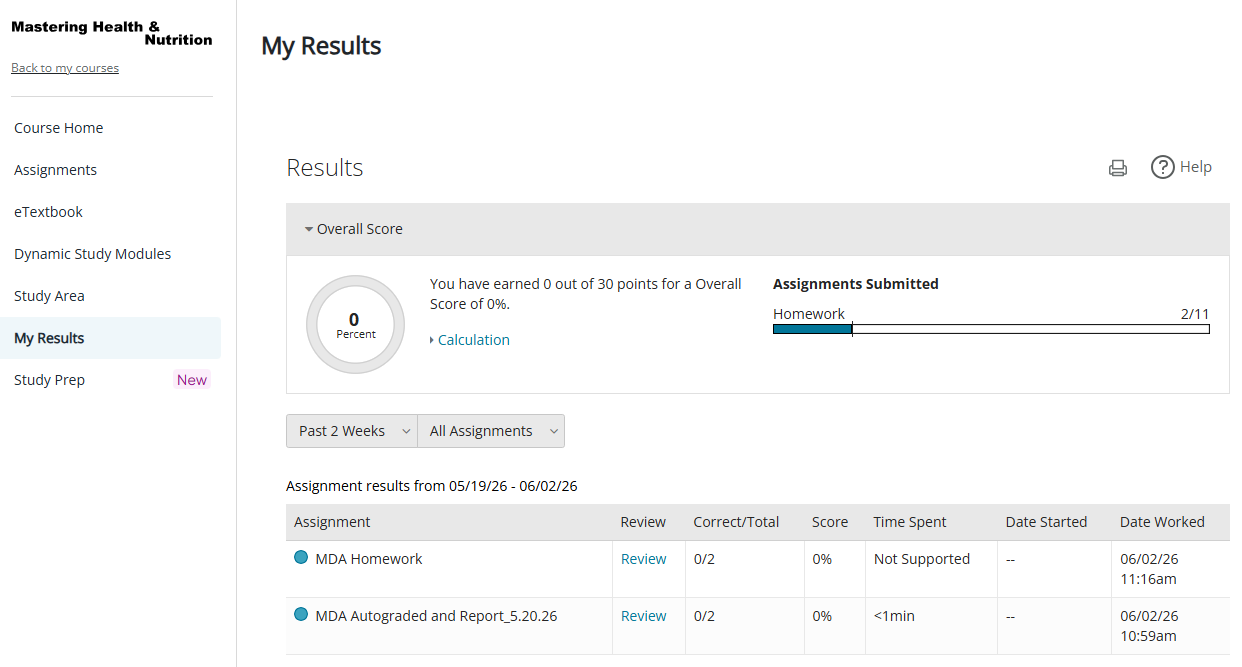
You can see:- Your overall score for the course
- Your results on assignments
- How your score is calculated
- Use the in-product Help icon to learn more about your results.
Review your work
Reviewing your past work after you have completed an assignment can help you prepare for an exam. You can review your work in the student player unless your instructor prevents it.
- From your Course Home, select My Results.
The Results page opens.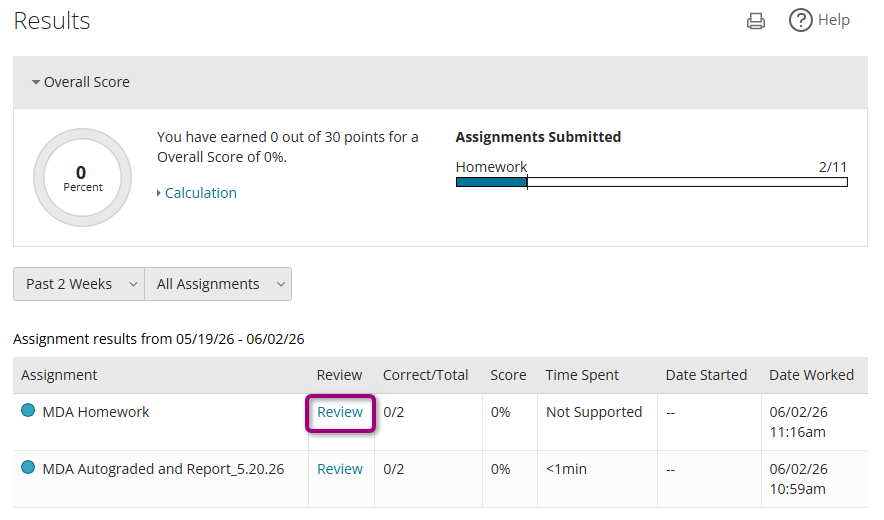
- Find the assignment and select Review.
The assignment opens in the student player.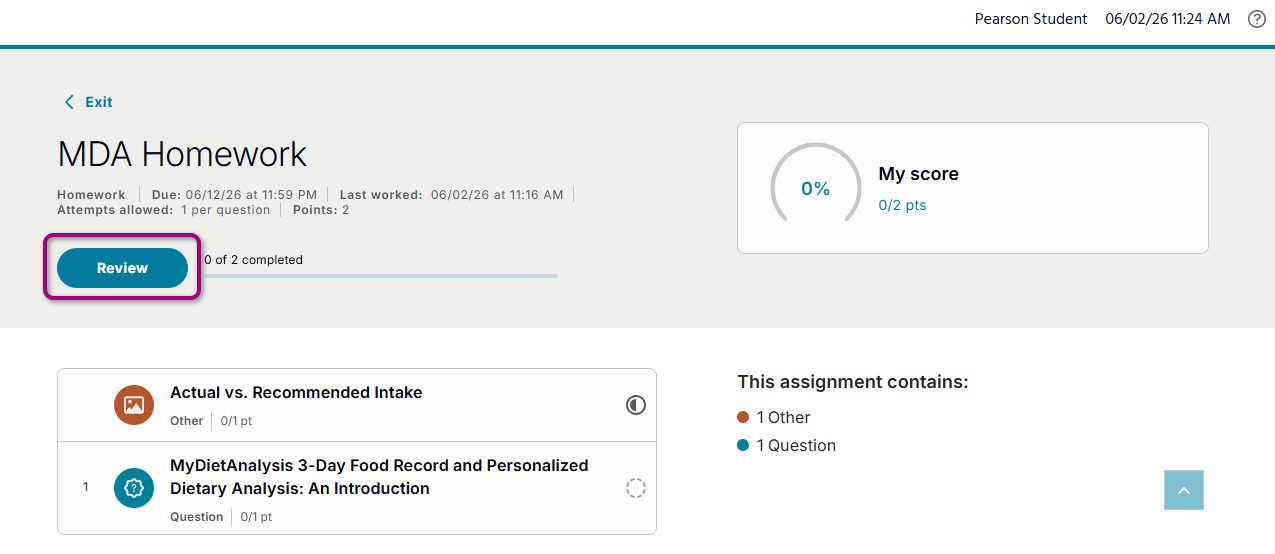
- Select Review.
- Select a question to see your answers and the correct answers.
From your standalone course
Submit a report
If you open MyDietAnalysis from your standalone course, you can submit nutritional reports.
Review a previously submitted report
- In standalone MyDietAnalysis, open the MyClass page.
- In the Latest submission column, find the report to view. Each submitted report file is a date, like 2/10/2026.
- Select a report file.
The Report details page opens.
If the instructor commented on the report, the comments show here. - Use buttons above the report to Download or Print it.
- Select
 to go back to the Reports list.
Change a course
- In standalone MyDietAnalysis, open the MyClass page.
- Select another course name from the Change class list.
Join another course
- In standalone MyDietAnalysis, open the MyClass page.
- Select Join another course from the Change class list.
- Enter the Course ID.
- Select Join course.
Leave a course
- In standalone MyDietAnalysis, open the MyClass page.
- Select Leave course to drop your course.
A warning message shows. - Select Leave course.
Updated 24 Jun 2026