MyLab math questions
Use the links below for instructions on how to answer different question types in the student player.
 Type your answer in an empty box
For example:

Depending on your course, use the math palette to enter mathematical
formats and symbols (such as fractions and square roots). The math palette shows when you select  inside the answer box.

You can also copy and paste using keyboard shortcuts. Select the text and click Control-c to copy. Then click Control-v to paste.
Use math expressions to enter answers using the math palette.
Use keyboard shortcuts to enter math symbols and functions.
Use the on-screen keyboard to enter answers on your tablet or touch-screen device.
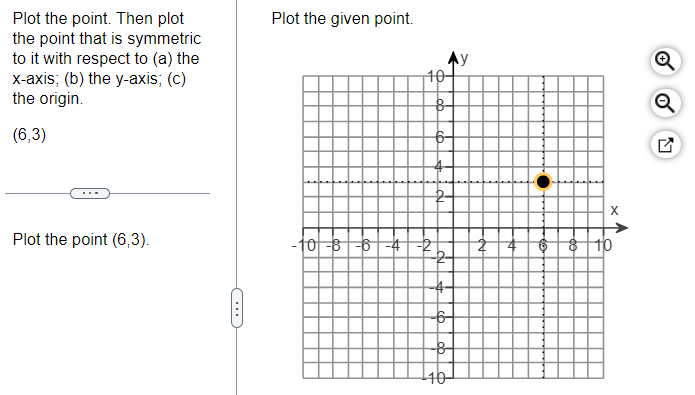
Plot your answer on a number line
Drag the pointer to the correct point on the line:
Plot the answer on a graph
If your question uses a graph, you'll see a blank graph.
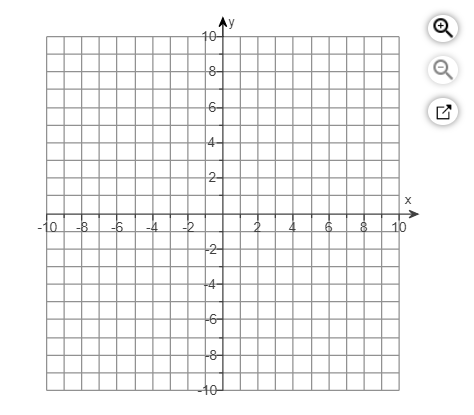
Use  to make the graph larger or smaller.
Click or tap inside the graph to enable a palette of drawing tools.

Use  to open a larger version of the graph and tools palette in a new window.
Or, select Click to enlarge graph to open a larger version of the graph and tools palette in a new window.
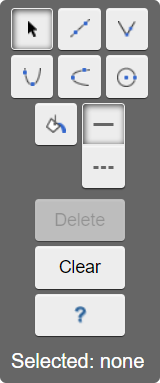
For example, to draw a dashed line, choose  and select the dashed line style
  .
.
Then select  to shade the
lower region of the graph.
to shade the
lower region of the graph.
See the MyLab grapher help to use the graphing tool.
Choose an answer from a menu
Select Fill in to select the answer from a menu:
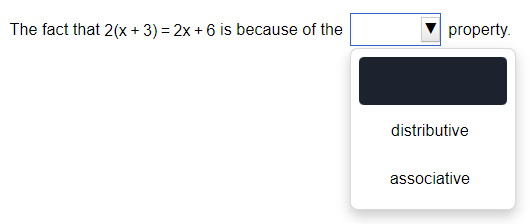
If Fill in does not show, select the box to choose the answer from a menu.
Enter special characters
You can use the math palette to insert special formats and symbols (for example, fractions and square roots) into your answers.
Select inside the answer box to open the math palette.
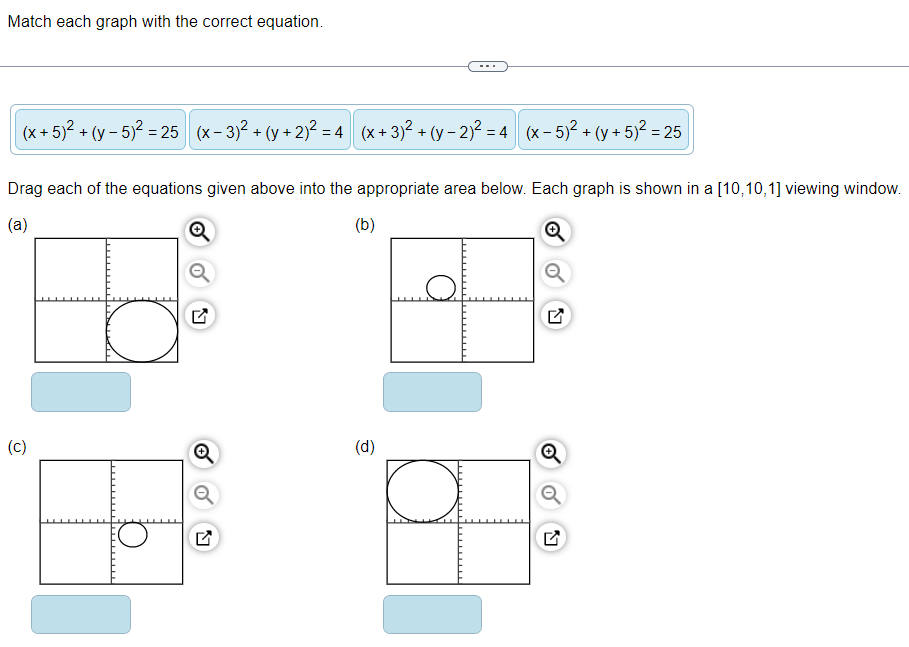
Drag and drop
Some questions ask you to drag part of your answer into the appropriate position. For example:
Use the calculator
In some courses, you can transfer answers from the calculator into your question:
- Select the answer box where you want to enter your calculation.
- Select Get more help and choose the calculator.
- Do your calculation.
- Transfer the answer to the question either by:
- Selecting the Enter key
 on the calculator.
 - Copying the answer from the calculator by highlighting the number and pressing Ctrl c on your keyboard. Then place your cursor in the answer box and press Ctrl v to paste in the number.
- Selecting the Enter key
Use question data
When you need additional data to answer a question, you see an icon on the left that opens the data.
Show your work
When you have to show your work on a question, the Show work button opens a window where you can draw, enter text or equations, or upload images.