Start and review a homework activity

Homework activities can include multimedia presentations, such as videos or animations that help you learn new skills, and questions that help you practice what you have learned. You can choose an activity to work on from the Course Home, the Assignments Due page, or from one of your Learning Paths.

The instructor may set up some activities so that you can complete them and later rework them. To rework an activity, select its name on the Assignments Due page or on the Activities page. If the activity opens in the MyLab player, your previous answers do not appear. However, your previous score remains in your instructor's Gradebook until you complete this new attempt.

After you finish an activity, you can review your answers by selecting the Review link on the Assignments Due page, the Activities page, or the Results page.

If you use the JAWS screen reader, see Set up the player for JAWS.

The Do Homework and Review Homework pages are similar in appearance. When you work on a homework activity, you first see the Do Homework page. After you complete a homework activity and select its Review link on the Topic Activities or Results page, the Review Homework page is displayed.

collapsedDo Homework page

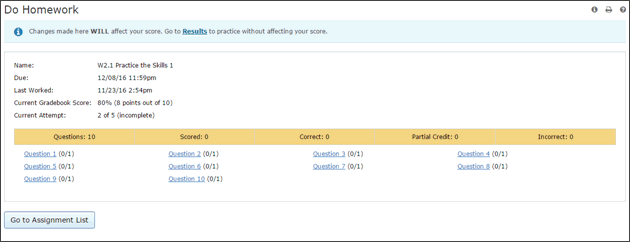
When you select the name of an activity on the Activities page or the Course Home, the Do Homework page opens.

To work a homework question or run a media, select its link on the Do Homework page. You must complete all questions and run all media in order to receive credit for the activity.

If the activity has only questions, you don't have to do the questions in order.

If your instructor wants you to answer questions about the media, the name of the media and the associated questions are in the same row of the table. You may need to view or work on the media before you can answer the questions.

This page has information on the homework; number of questions and scored, correct, partial credit, and incorrect answers; and question links.

The Do Homework page also displays a message letting you know when Skill Builder adaptive practice is available with an assignment.

Stuck on a question? New Skill Builder will help you just when you need it!

For details on completing homework in the player, see Do and review homework in the player. For other types of homework, see Work a Writing Skills or Writing Practice essay activity, and Work a Writing Space assignment.

collapsedReview Homework page

The Review Homework page opens when you select the Review link next to a completed activity on the Topic Activities or Results page.

There is information on the homework; number of questions and scored, correct, partial credit, and incorrect answers; and question review links.

collapsedActivity information

For each activity, the Do Homework and Review Homework pages display:

  • The name of the activity.
  • The date when you last worked the activity.
  • The score you received when you last worked the activity.
  • For Reading and Writing activities, Current Attempt displays the number of times you have attempted the activity out of the total number of attempts available. This number does not reflect the number of times you can select Check Answer.
  • For Math activities, the Number of times you can complete each question is the number of times you can select Try Again or Similar Exercise. This number does not reflect the number of times you can select Check Answer.
  • The score required for mastery (if the activity requires a minimum score).

If this assignment is a prerequisite for another assignment, you see the Prerequisite icon Prerequisite icon with a message saying something like "You must submit this assignment before you can begin the other assignment."

collapsedQuestion information and icons

Information about the questions is displayed in a table. The first row provides the following information:

  • Questions: The number of questions in the assignment.
  • Ungraded: The number of questions that your instructor needs to grade manually. For example, if you had to write a short essay or show your work, your instructor needs to review your answer before you get a complete grade.
  • Scored: The number of questions that have been scored.
  • Correct: The number of questions you answered correctly.
  • Partial Credit: The number of questions for which you received partial credit. Some courses do not give partial credit. (See the description for the partial credit icon Partial credit in the table below for details.)
  • Incorrect: The number of questions you answered incorrectly.

The table then lists all questions in the activity. An icon next to questions that you have completed provides information about your answer.

You may see additional icons showing whether question help tools are available for a question.

collapsedMedia icons

For activities with media, an icon tells you the media type.


See also: